How to Use the Gel Analyzer
The Gel Analyzer detects the lanes on a photo of one row of your genotyping gel and writes the genotypes you confirm onto each animal's record. It replaces retyping tags from a lane map, and lanes whose bands match one you've already called suggest the same allele.
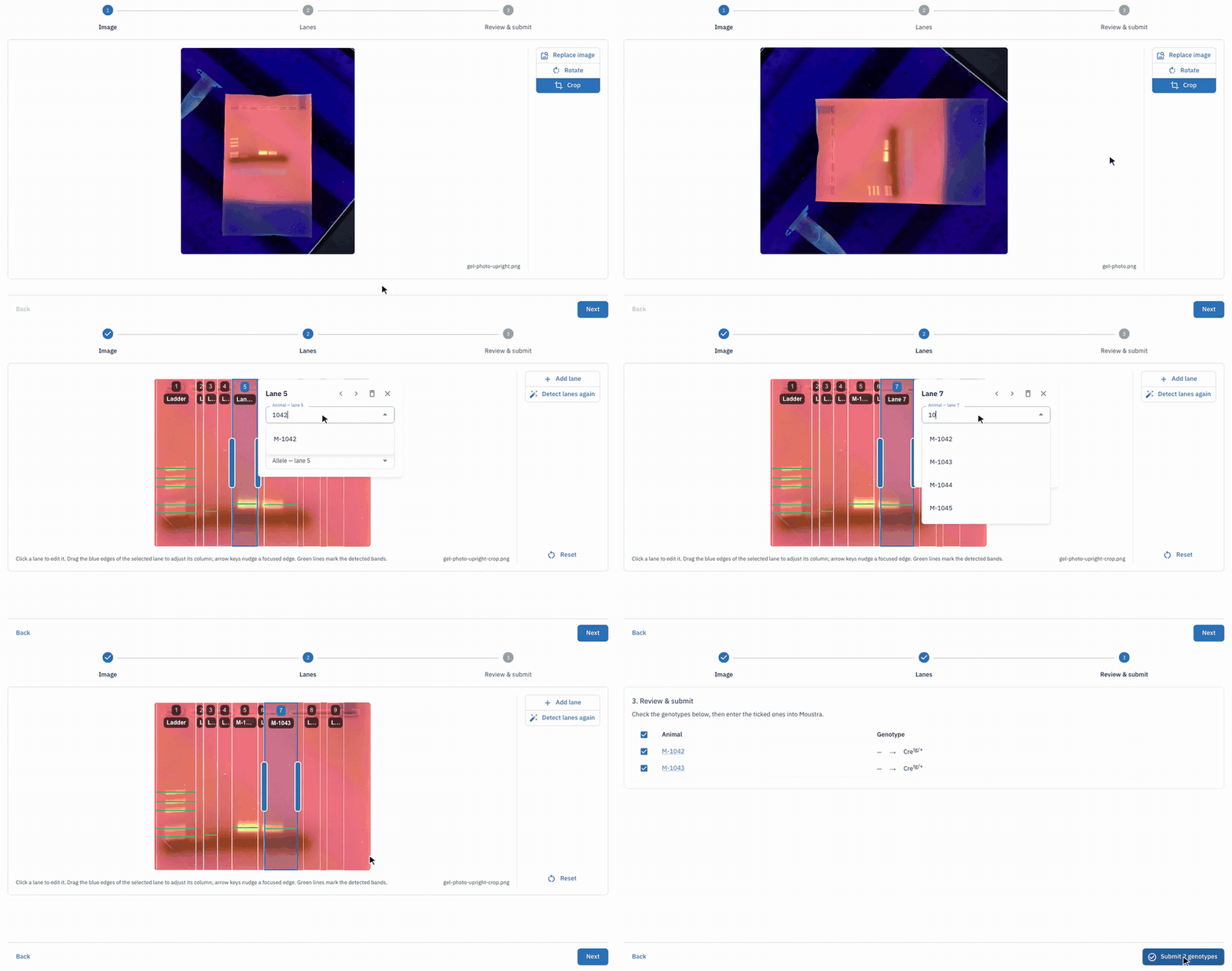
Open the Gel Analyzer
Open Animals in the navigation menu and click Gel Analyzer. Click How to use at any time for a short clip of each step.
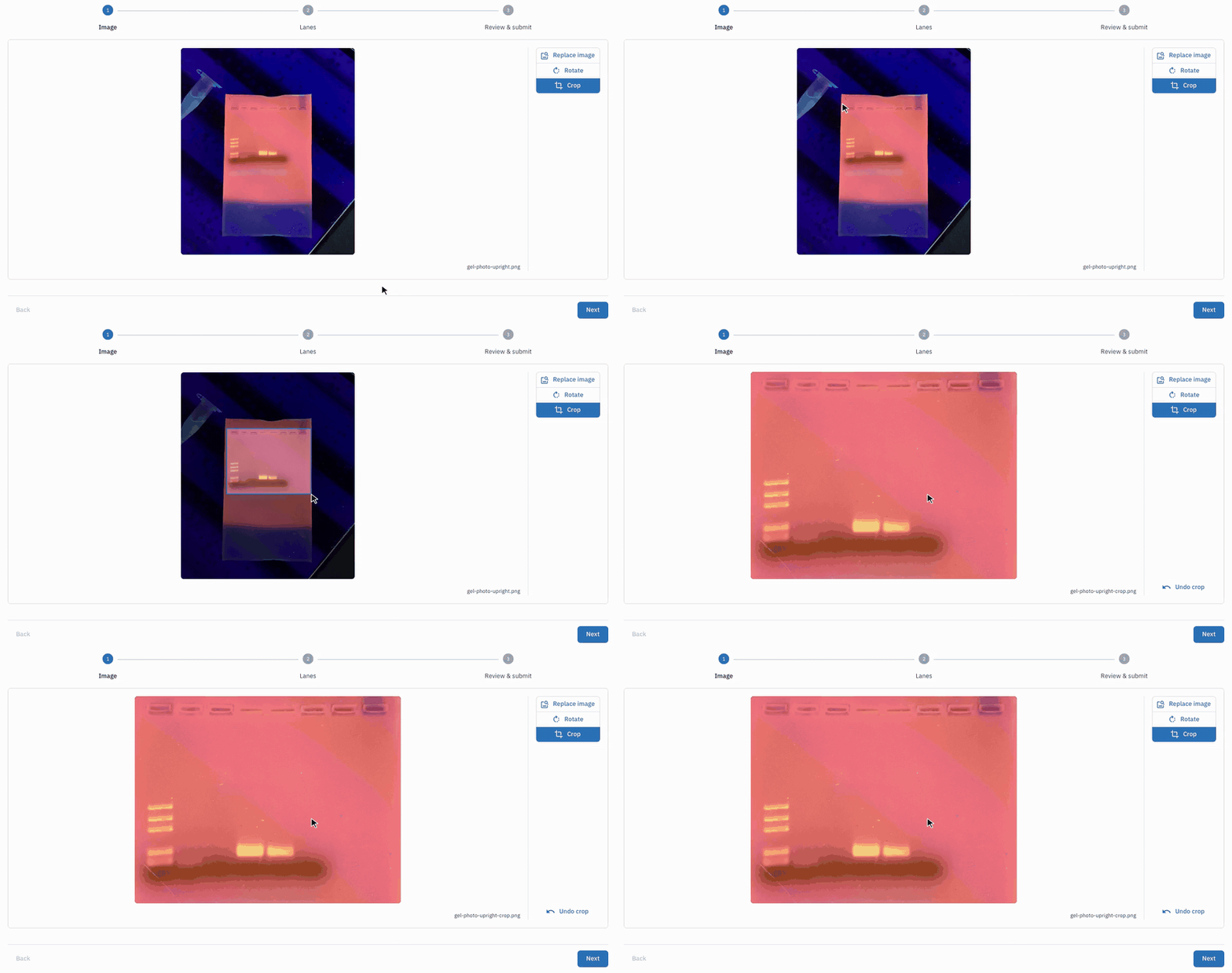
Crop to one row
Upload a PNG or JPEG of your gel, then drag a box around one row of wells and its bands. Leave out rulers, labels, and the wells of the next row.
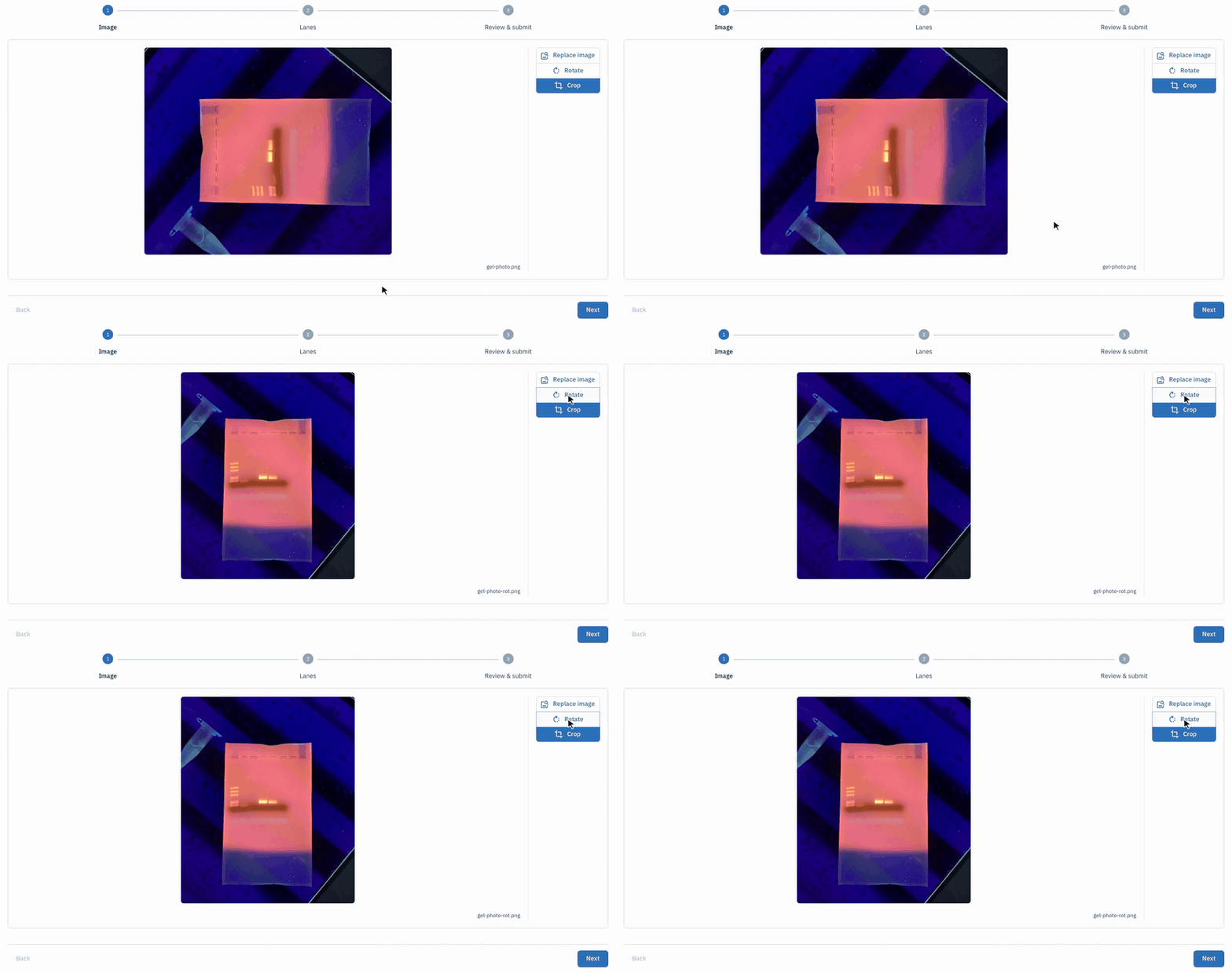
Rotate the image
Click Rotate until the wells run along the top, then click Next.
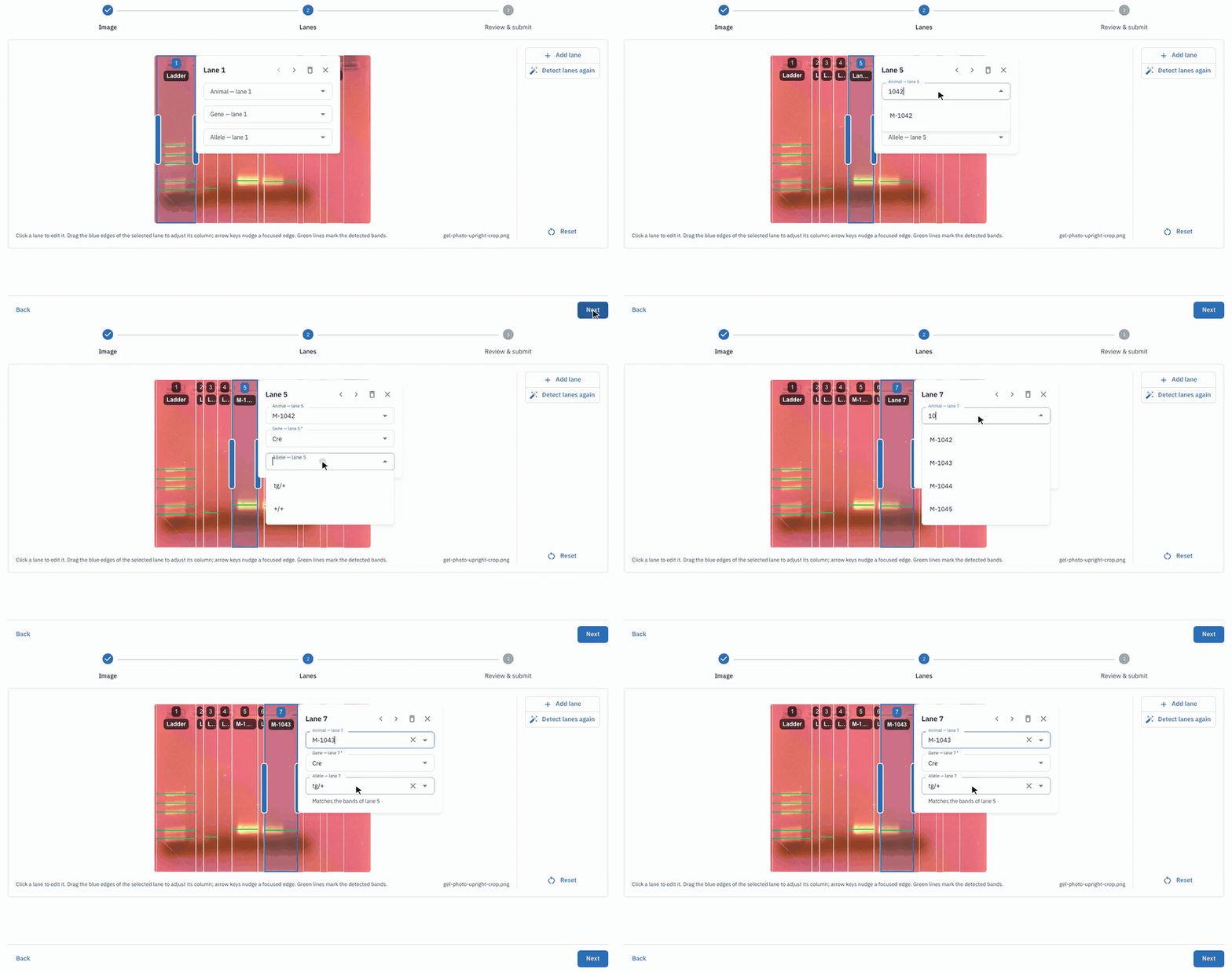
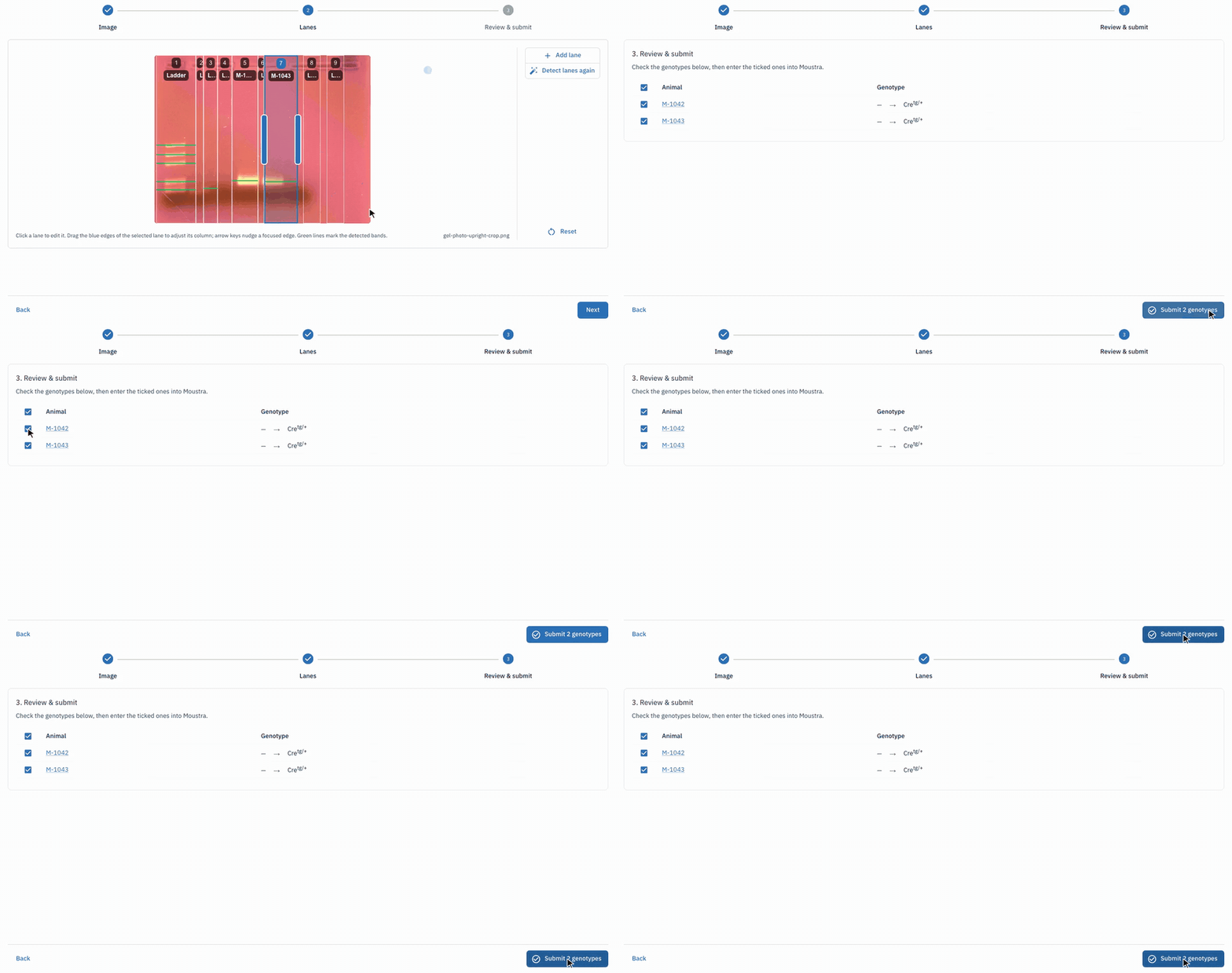
Check the detected lanes
Drag a lane's edges to fix its column, click Add lane for one that was missed, or click Detect lanes again. Confirm any lane marked as inferred before assigning a sample.
Assign each lane
Click a lane and choose its Animal, Gene, and optionally an Allele. Lanes with no animal, such as ladders or blanks, are left out of the results.
Review and submit
Check the box next to each genotype you want to enter, then click Submit (it shows the count, such as Submit 2 genotypes). Moustra writes them onto the animal records.
More in Editing your colony
How to Create a New Animal
Step-by-step instructions for adding a new animal, including key fields and tips.
How to Add a New Strain
This guide will walk you through the process of creating a new strain entry in Moustra.
How to Add Breeding Animals
This guide will walk you through the process of creating multiple breeding animals at once in Moustra.