How to Use the Mobile App
Moustra ships dedicated native iOS and Android apps for bench-side and animal-room work where a laptop is impractical. Browse your racks and cages, scan a cage barcode to jump straight to a record, add or end animals right at the bench, and check colony Insights — all synced live with the web app, so changes appear immediately on every device.
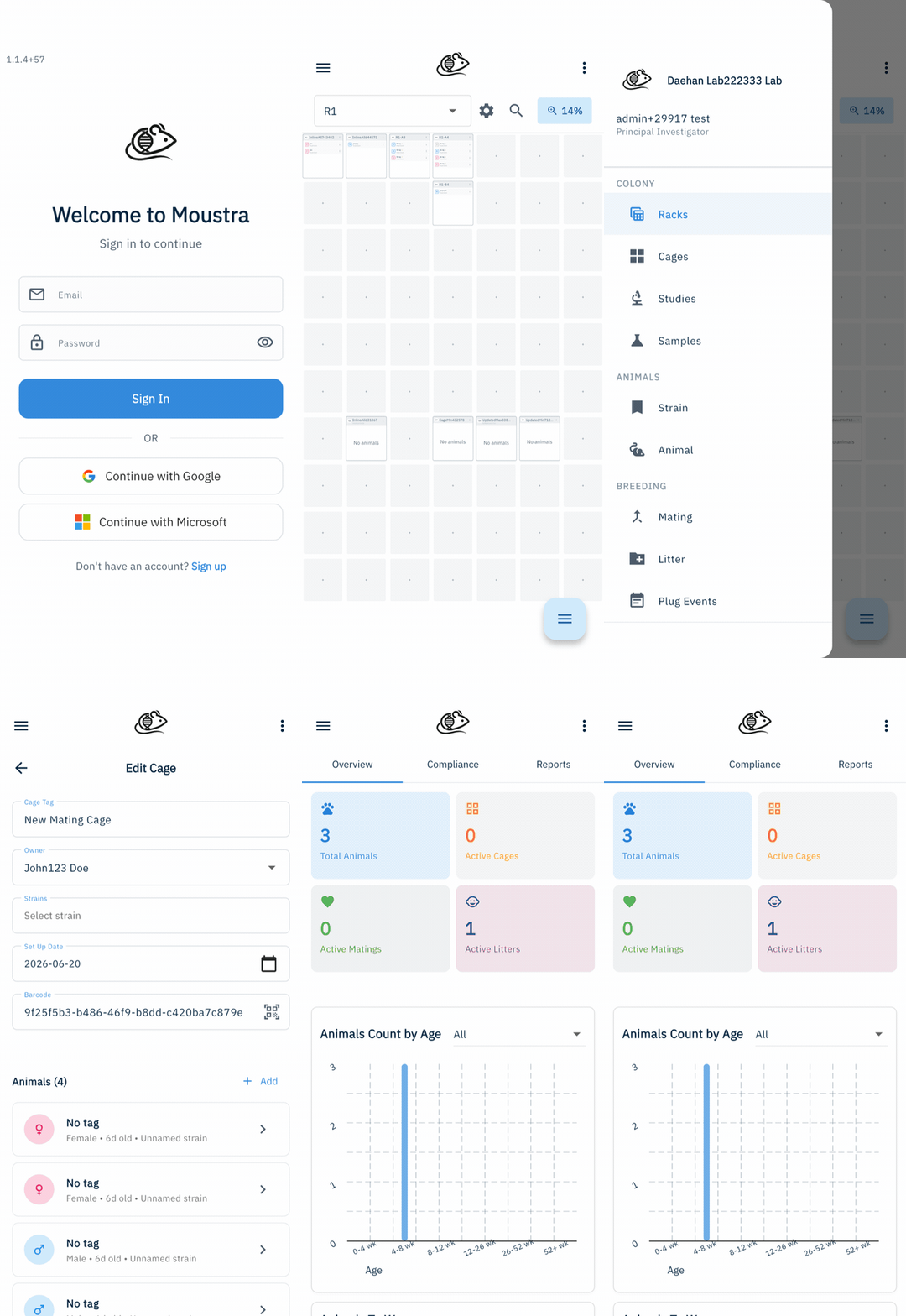
Sign in to the app
Download Moustra from the App Store (iOS) or Google Play (Android) and open it. On the Welcome to Moustra screen, sign in with the same email and password you use on the web app — or tap Continue with Google or Continue with Microsoft. Your lab, role, and permissions follow you to mobile automatically.
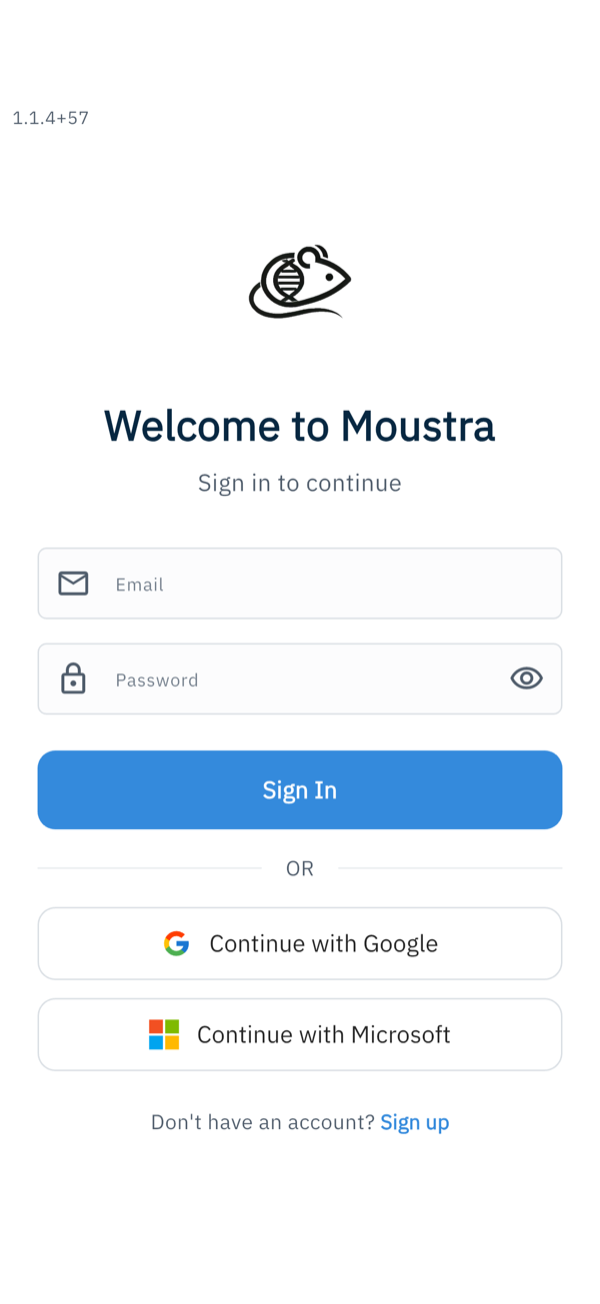
Start on the Racks grid
After you sign in, the app opens on the Racks grid — a live, zoomable map of every rack and cage in your colony. Use the rack selector at the top to switch racks, use the zoom control (or pinch) to fit more on screen, and tap any cage to open it.
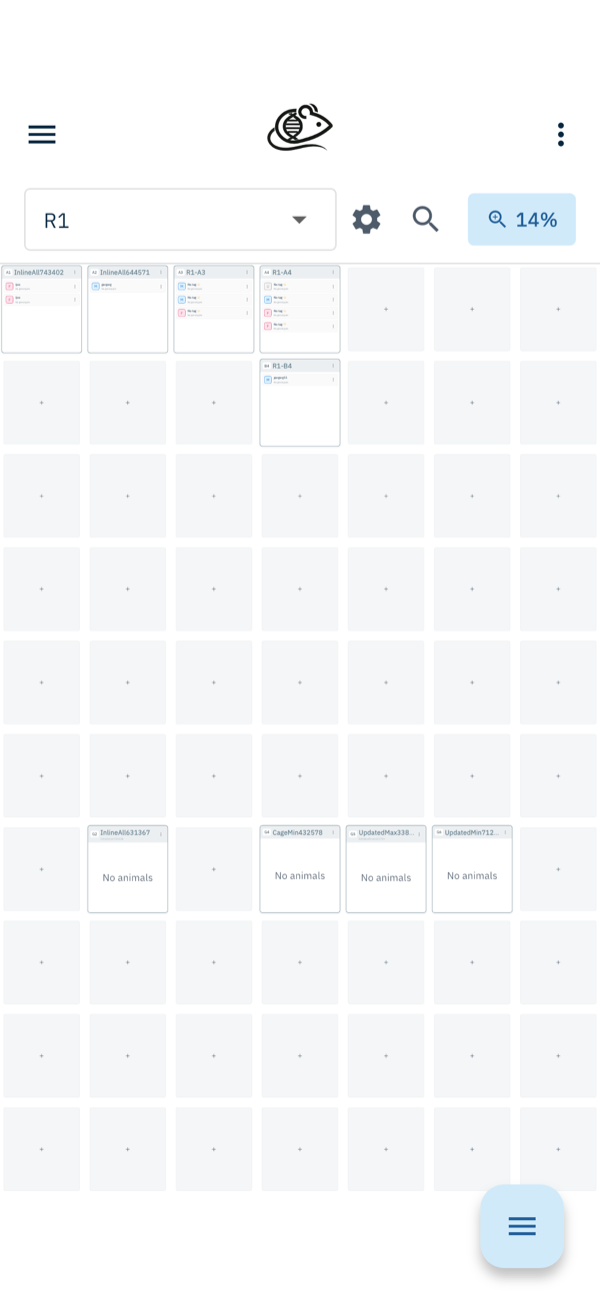
Get around with the menu
Tap the menu (the ☰ icon, top-left) to open the navigation drawer. It is organized into Colony (Racks, Cages, Studies, Samples), Animals (Strain, Animal), and Breeding (Mating, Litter, Plug Events), plus Insights and Settings. Tap any item to jump to that section.
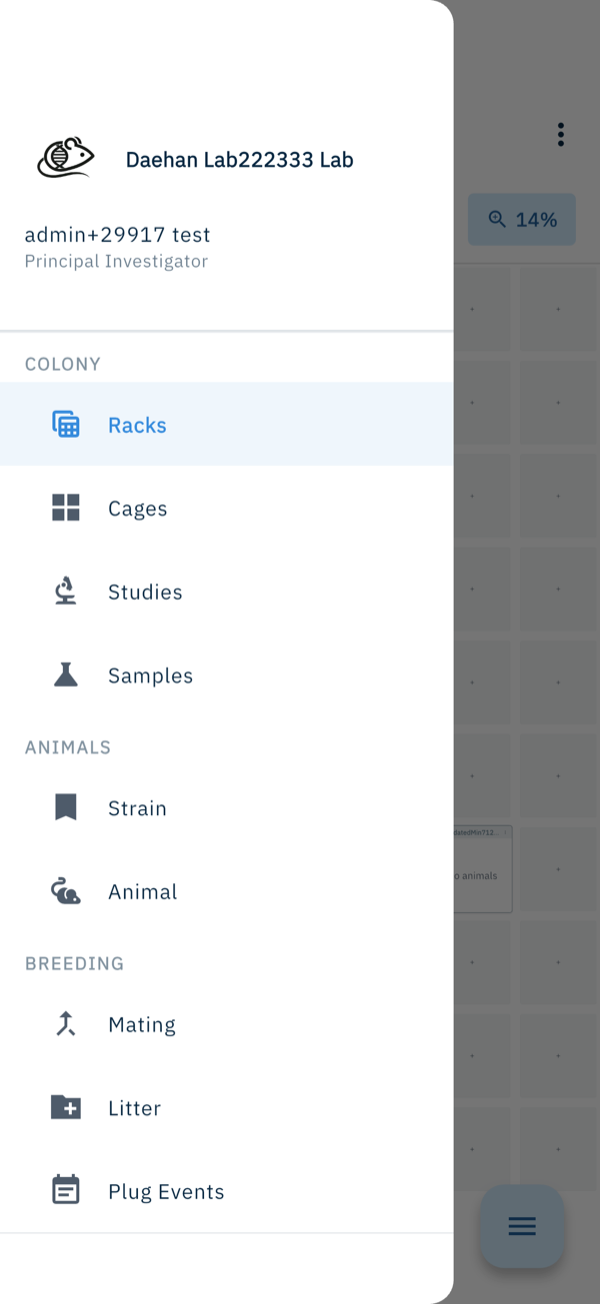
Scan a cage barcode
Open Cages from the menu, tap the floating + button in the bottom-right corner, and choose Scan Barcode. Point your camera at the QR or barcode on a cage card and the app jumps straight to that cage. The same + menu also offers Create Cage.
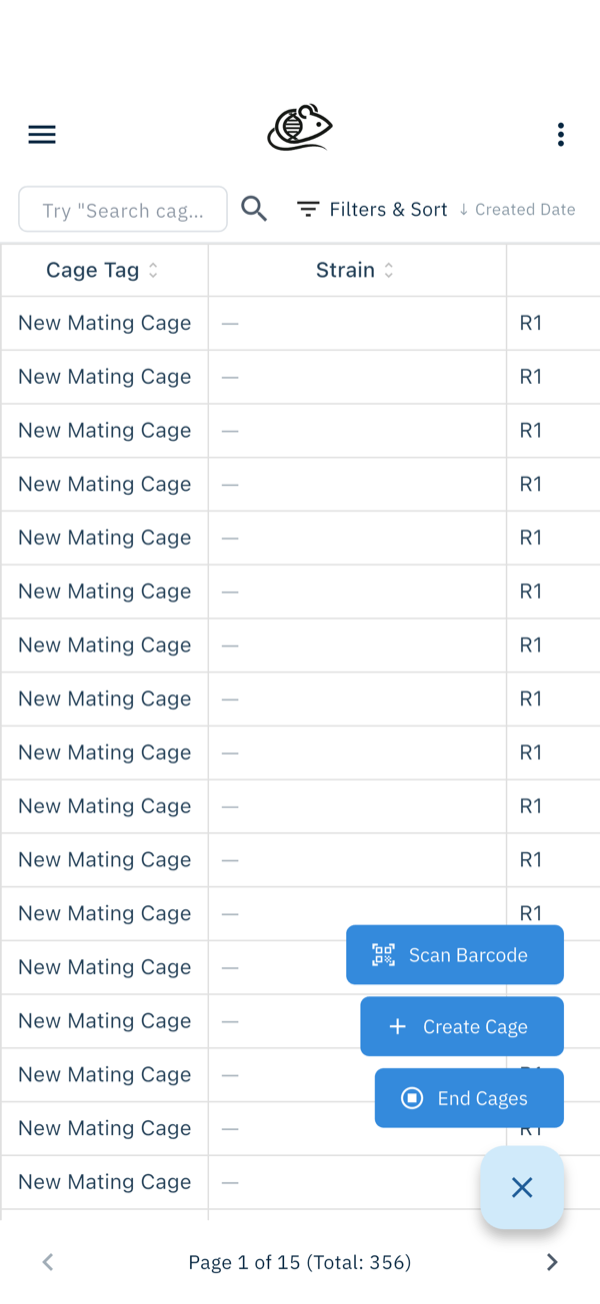
Open a cage and manage animals
Tap a cage to open it. The cage view shows its details and an Animals list; tap + Add to log a new occupant, or tap any animal to view and edit it — each animal also has a menu to Move, Open, or End it. Changes save instantly and sync to the web app.
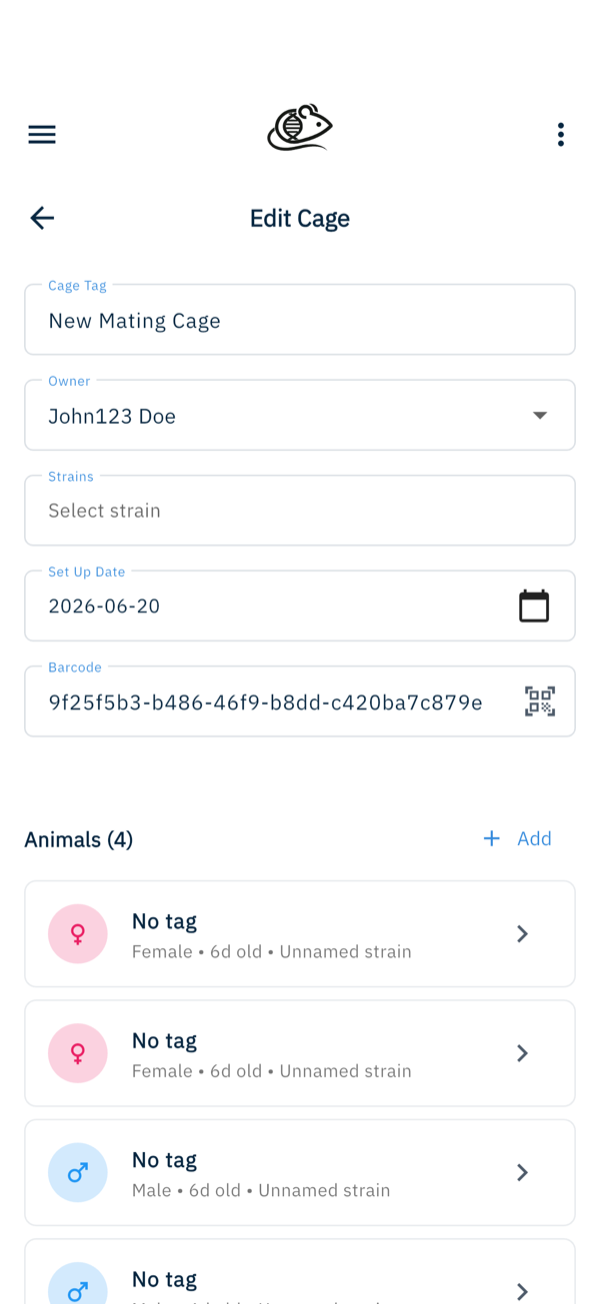
Check Insights
Open Insights from the menu for live colony analytics. The Overview tab shows summary cards — total animals, active cages, active matings, active litters — plus charts like Animals Count by Age, with Compliance and Reports tabs alongside. It is the same analytics as the web, sized for your phone.
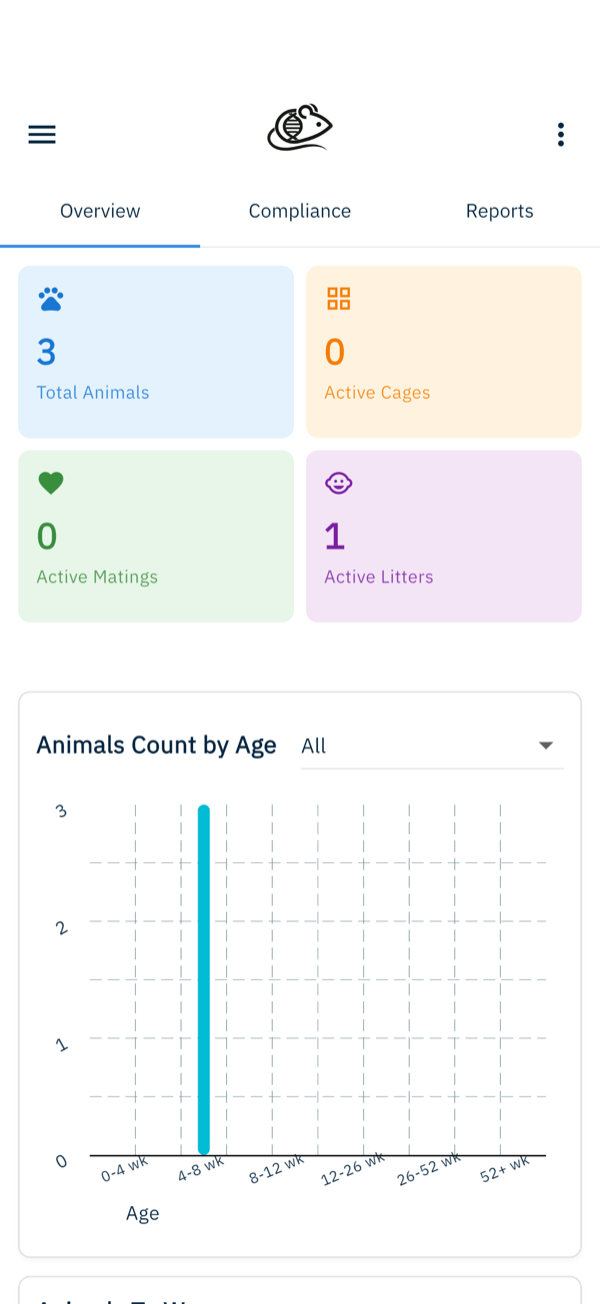
More in Navigation
How to Use the Cage Grid
See all the cages in a rack in a visual, spatial layout that mirrors your physical rack — check occupancy and animal counts and spot empty slots at a glance.
How to View the Family Tree
Visualize an animal's lineage and offspring to understand genetic relationships and plan breeding pairs.
How to Set Up IACUC Protocols
Create IACUC protocols with species limits so Moustra tracks approved animal usage and prevents exceeding caps.