How to Connect Slack
Connect a Slack workspace so Moustra can post colony activity and alerts to a channel. You set it up once from your lab's Integrations settings; the authorization itself happens in Slack's standard flow.
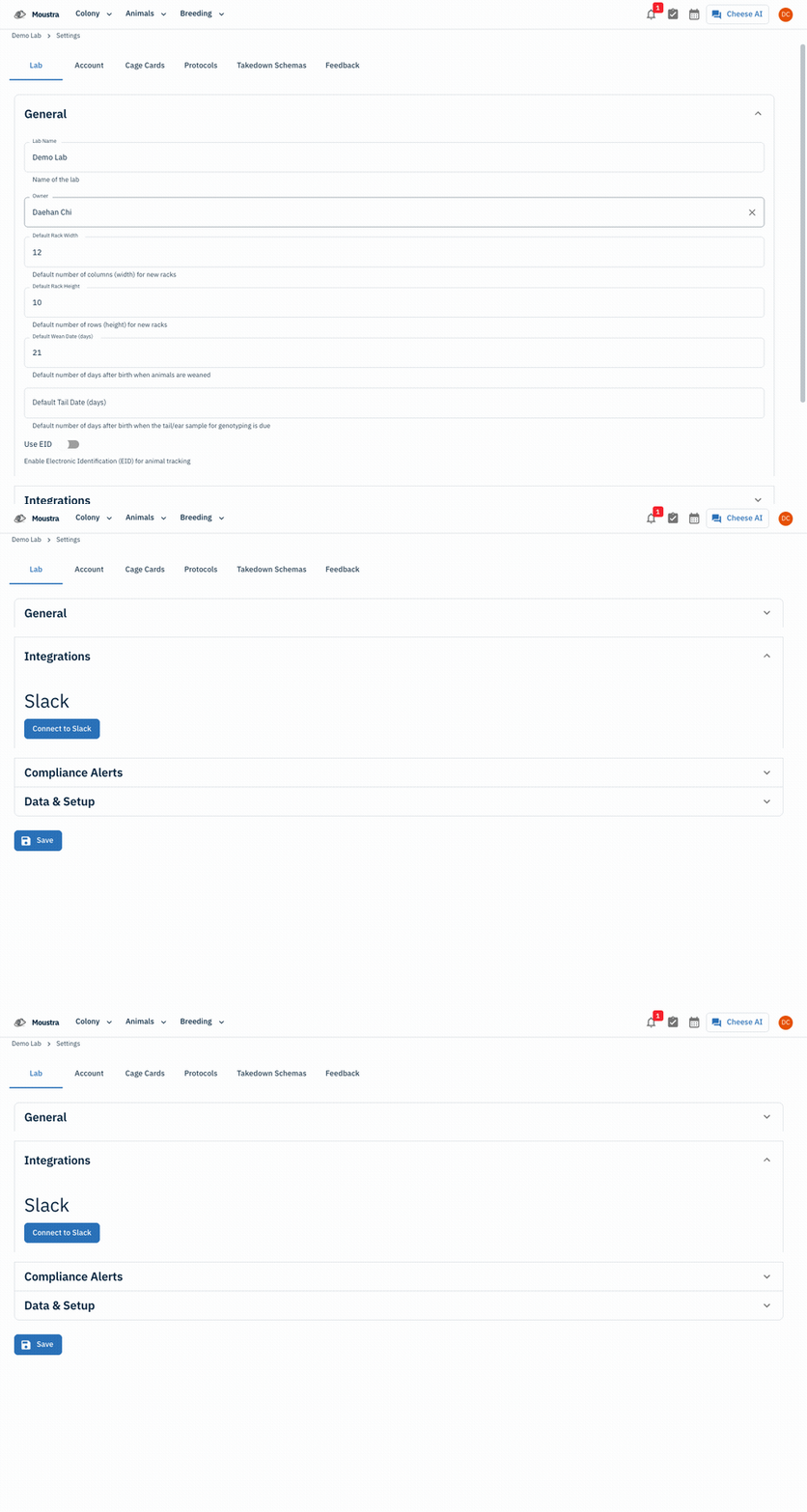
Open Settings → Lab → Integrations
From your account menu (top-right avatar) choose Settings, open the Lab tab, and expand the Integrations section.
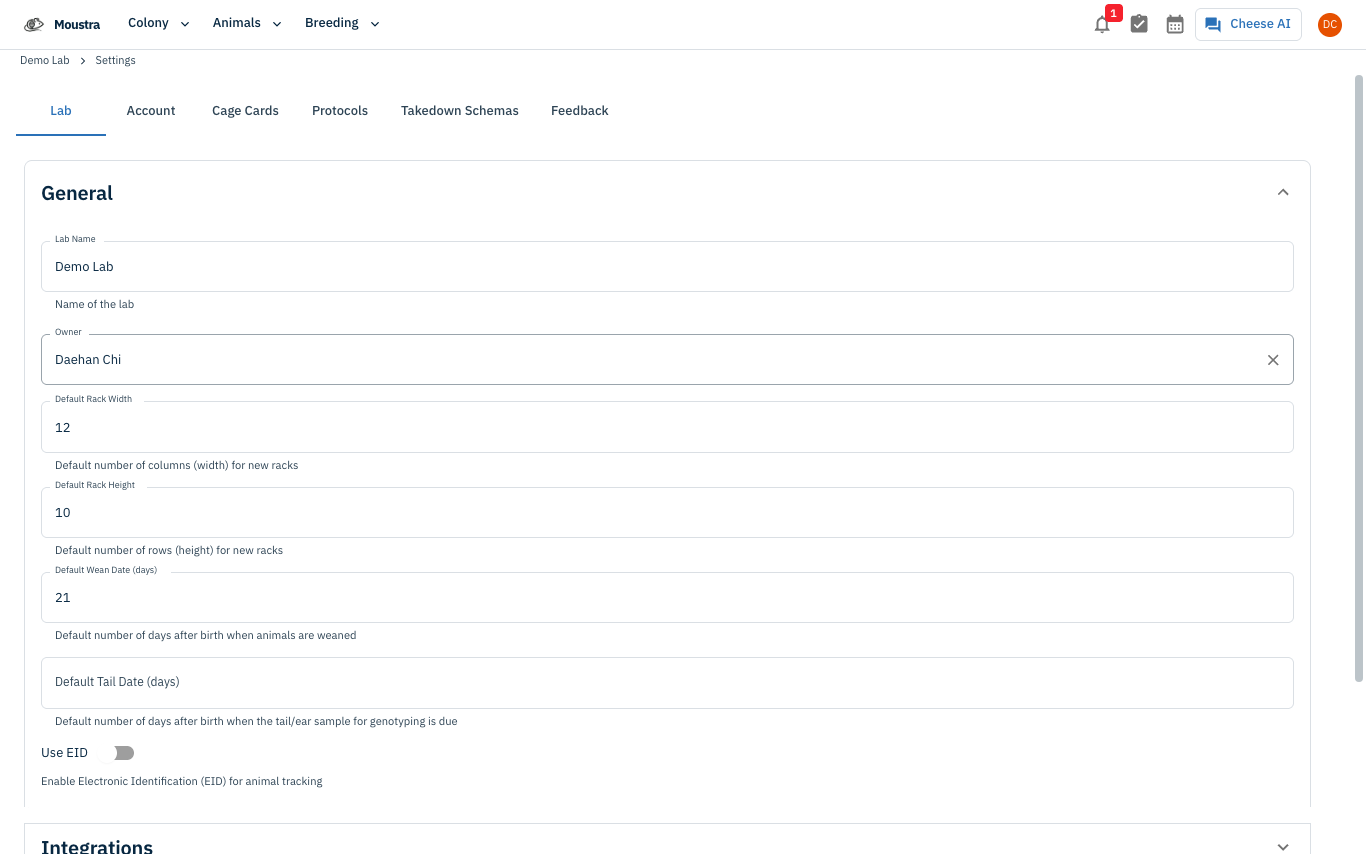
Click Connect to Slack
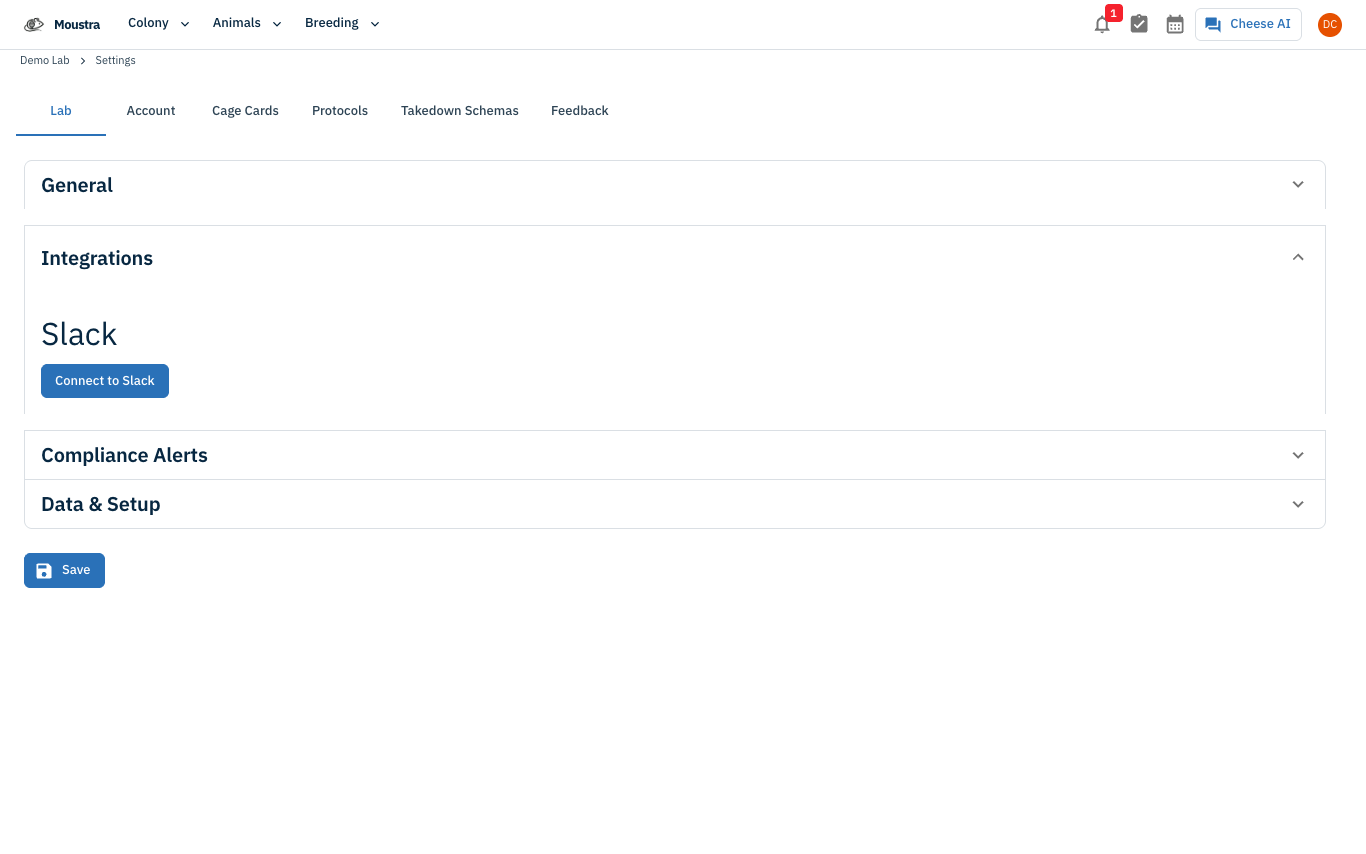
Under Slack, click Connect to Slack. Slack's authorization page opens — sign in, approve Moustra's access, and pick the channel to post to. Once authorized, Moustra confirms the connection here.
More in Advanced
Quick Edit Cell
Edit values directly in any data grid: double-click an editable cell and Moustra shows the right input (text, number, date, or dropdown). Press Enter to save or Escape to cancel.
How to Print Cage Cards
Print cage labels with animal tags, strain, and IACUC information for physical cage identification.
How to Configure Daily Reports
Set up automated email summaries of colony activity delivered each morning to your team.