How to View Weekly Reports
Weekly reports are automatic colony summaries Moustra generates for your lab every week — covering colony overview, population, cage trends and cost, breeding, research activity, and team usage. You do not configure them; Moustra produces one each week and keeps them in the Reports tab under Insights, where anyone on the lab can open a past week and review it. (The separate per-event "Daily digest" email is set under Settings, Notifications.)
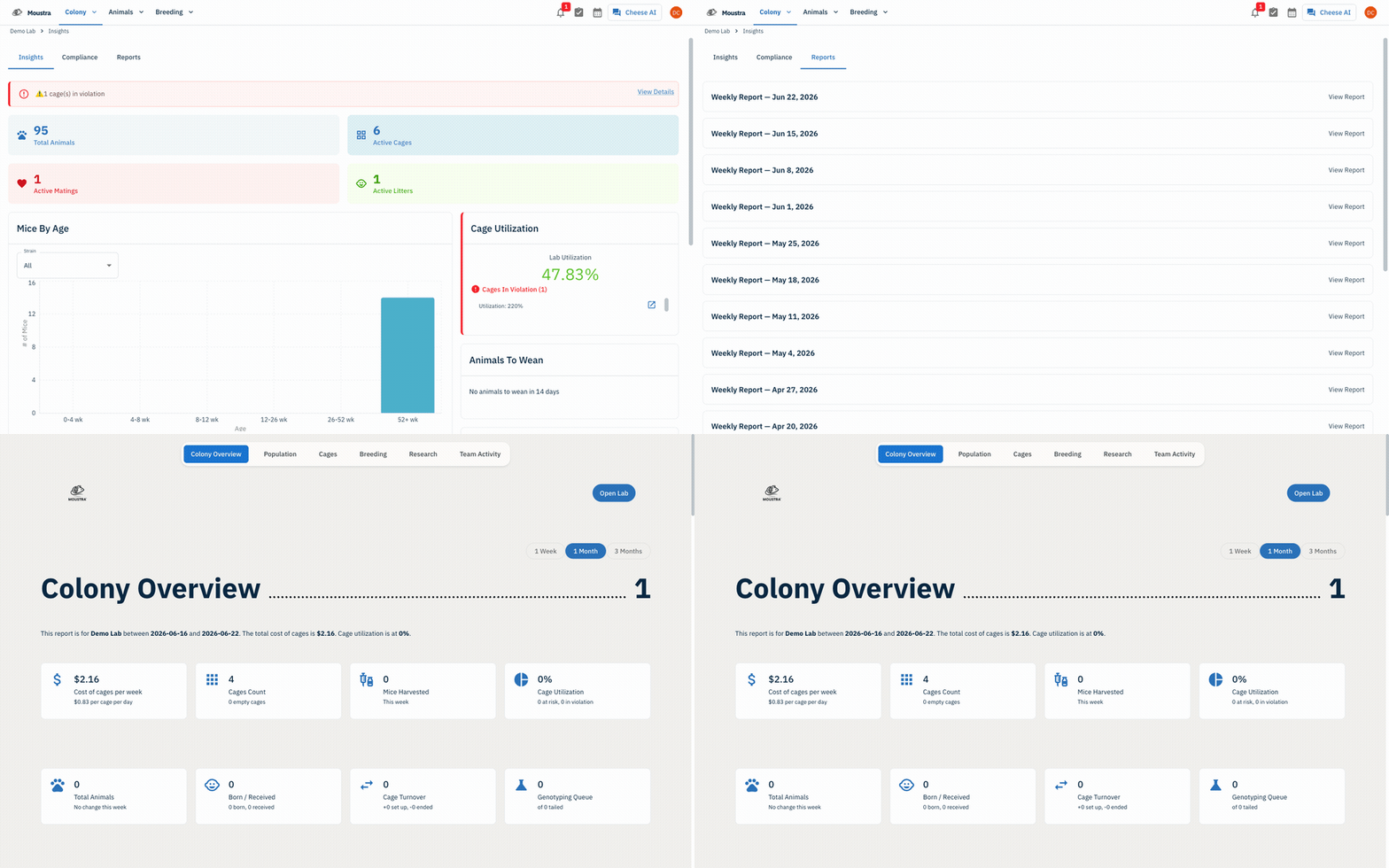
Open Insights
Click Insights in the navigation menu. This is your colony's analytics hub, with tabs for Insights, Compliance, and Reports.
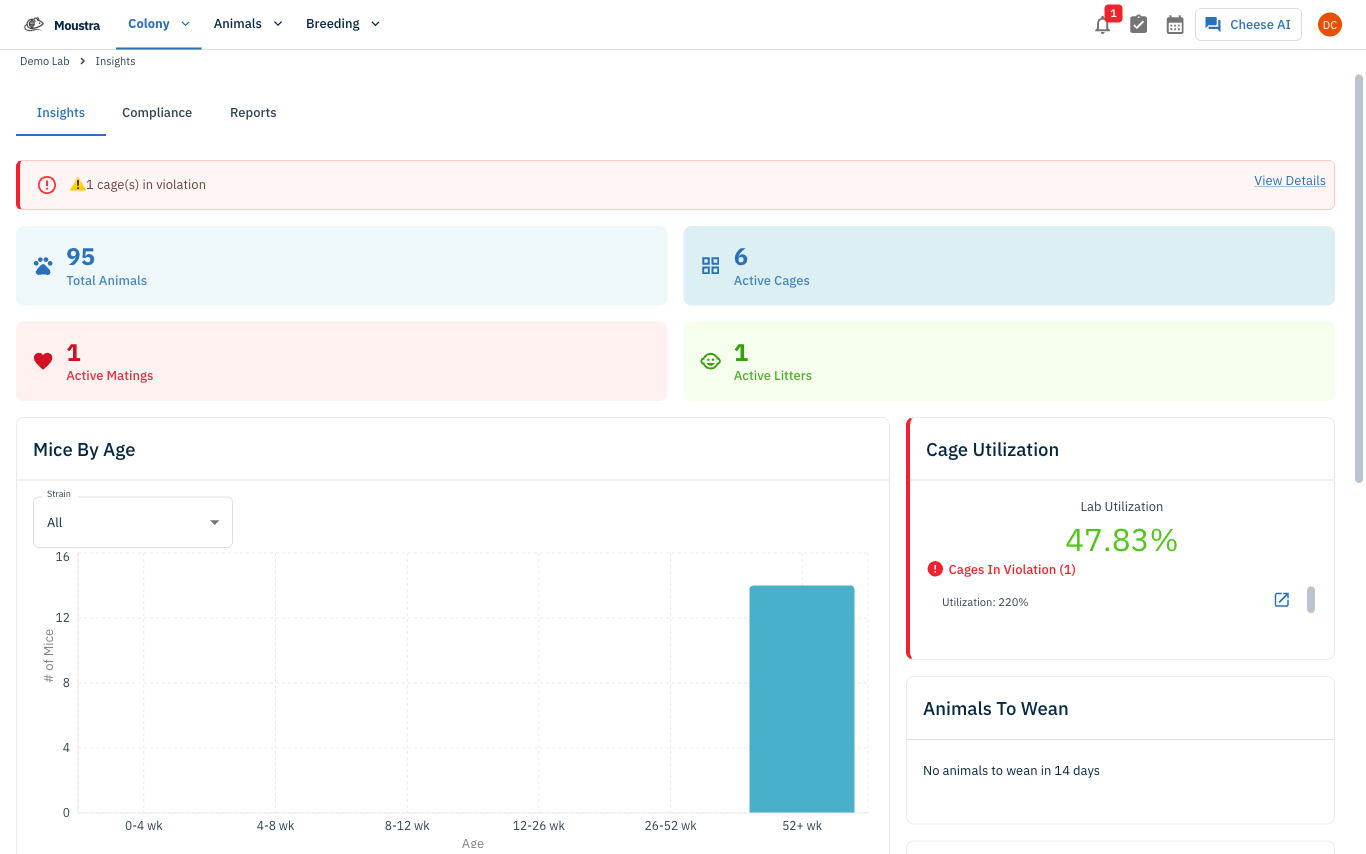
Open the Reports tab
Select the Reports tab. Moustra lists every weekly report it has generated for your lab, newest first — each labeled Weekly Report — <date>.
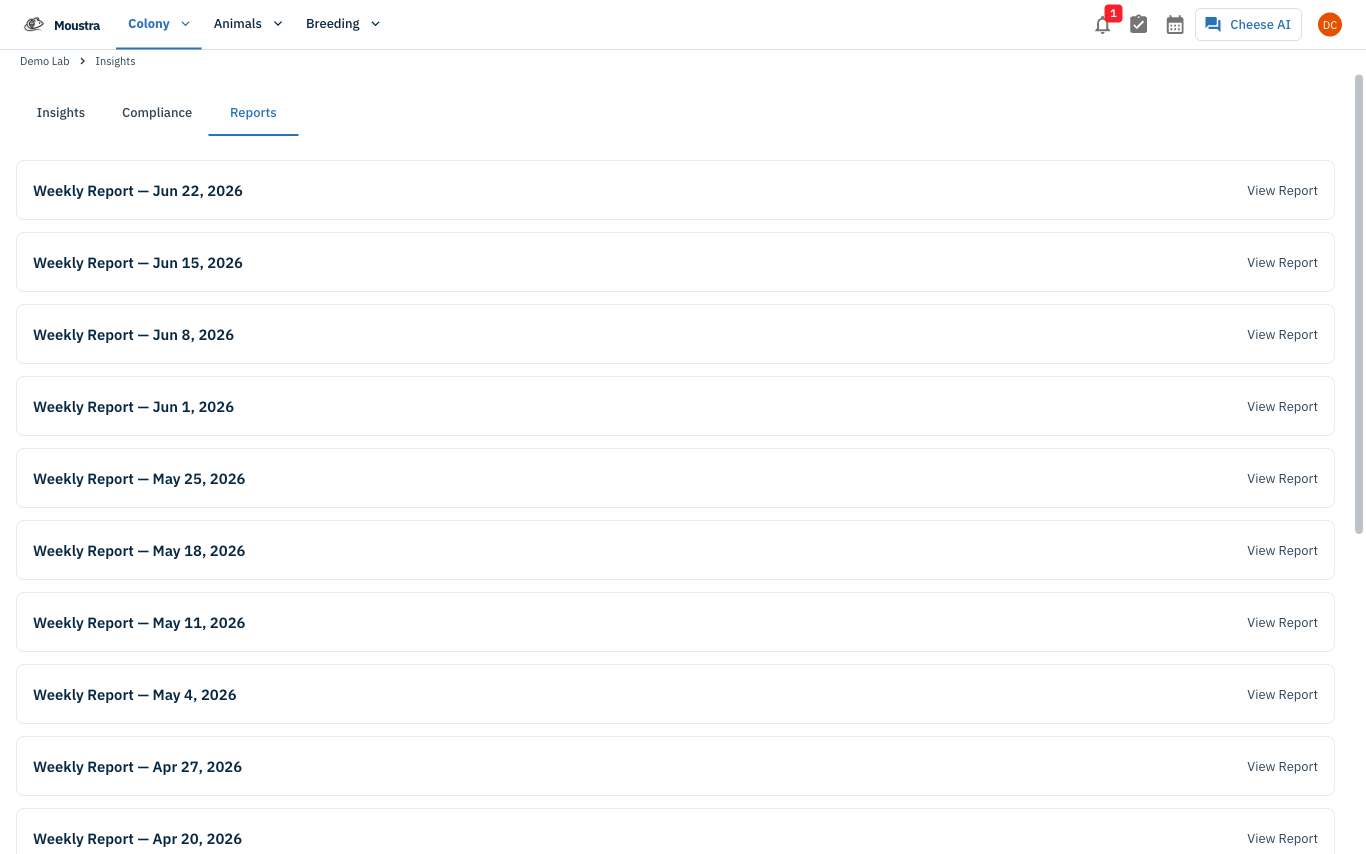
Open a weekly report
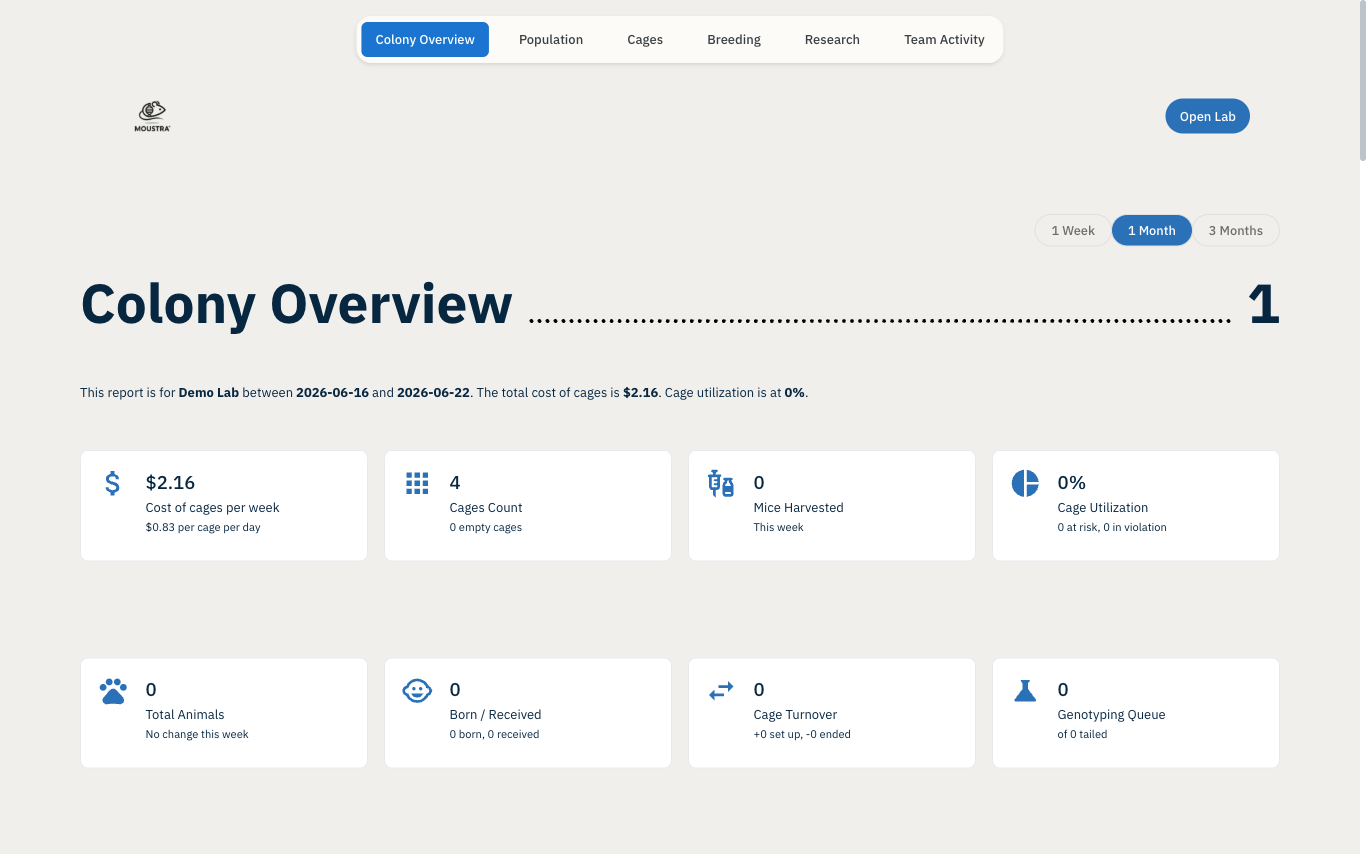
Click any Weekly Report card (or View Report) to open the full summary. Use the 1 Week / 1 Month / 3 Months toggle to change the window. Sections cover Colony Overview, Population, Cage Trend and cost, Breeding, Research Activity, and Team Activity.
More in Advanced
Quick Edit Cell
Edit values directly in any data grid: double-click an editable cell and Moustra shows the right input (text, number, date, or dropdown). Press Enter to save or Escape to cancel.
How to Print Cage Cards
Print cage labels with animal tags, strain, and IACUC information for physical cage identification.
How to Connect Slack
Receive real-time notifications in Slack for litters, weans, and colony milestones without logging into Moustra.