How to Add Animals to a Study
A study's cohort is built from animals already in your colony. Open the study, go to the Animals tab, and use the Cohort Builder to filter the colony, preview the matching candidates, and add a selection to the study. You can later exclude individual animals (with a reason) so they stay on record but drop out of the active count.
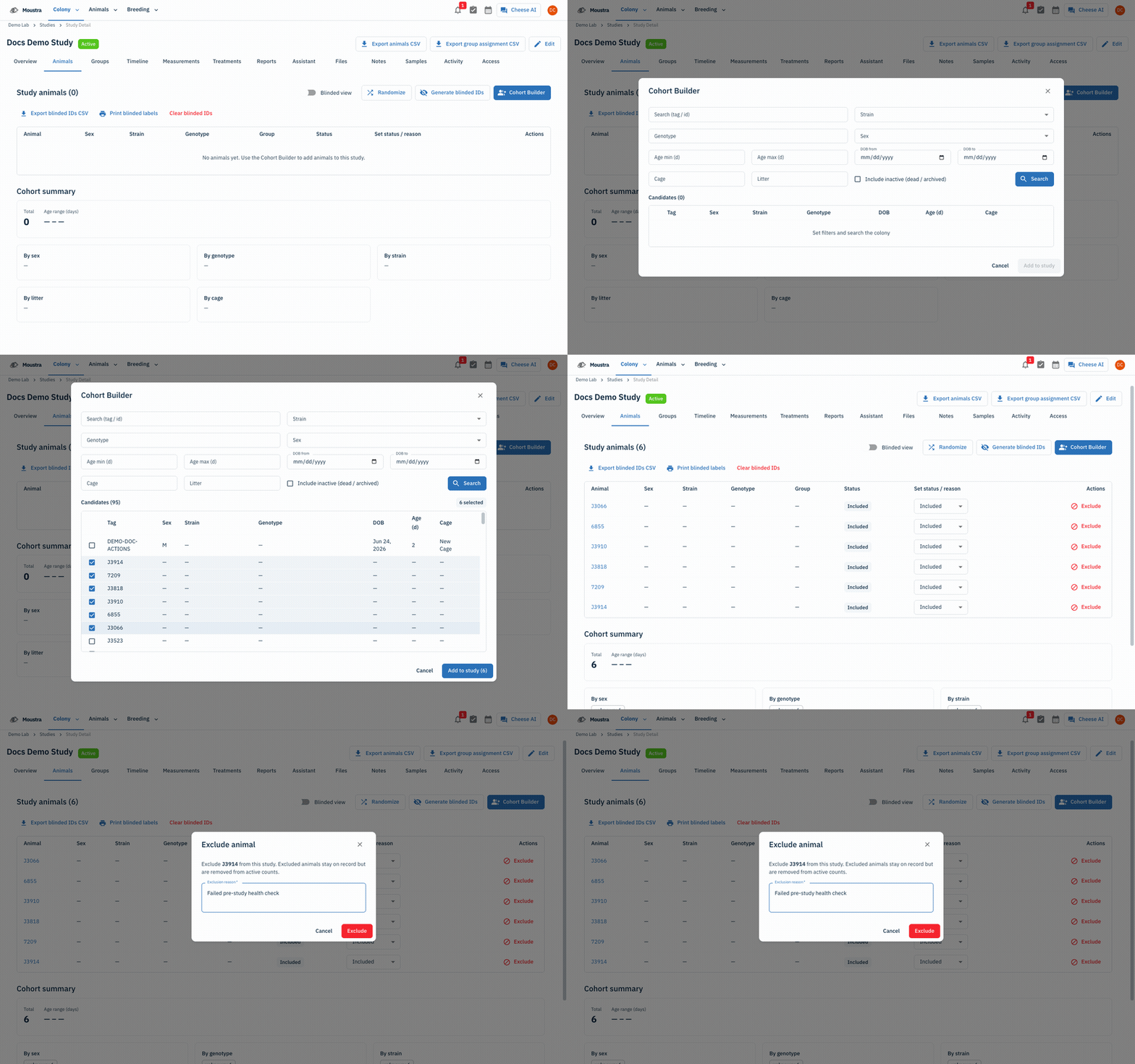
Open the study and switch to the Animals tab
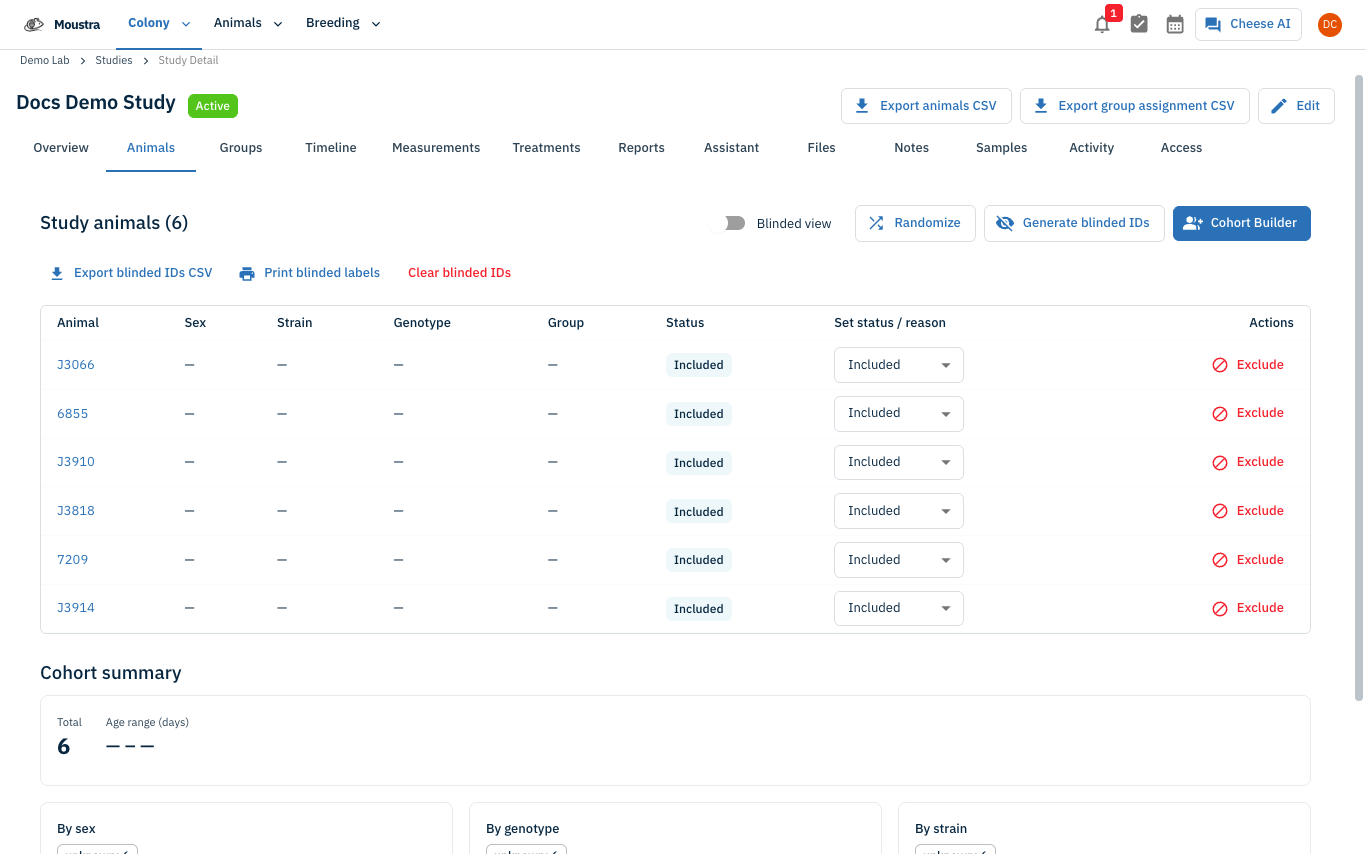
Open the study you want to populate, then click the Animals tab (the second tab, after Overview). The heading reads Study animals (N). An empty study shows "No animals yet. Use the Cohort Builder to add animals to this study." A Cohort summary below the table breaks the cohort down by sex, genotype, strain, litter, and cage.
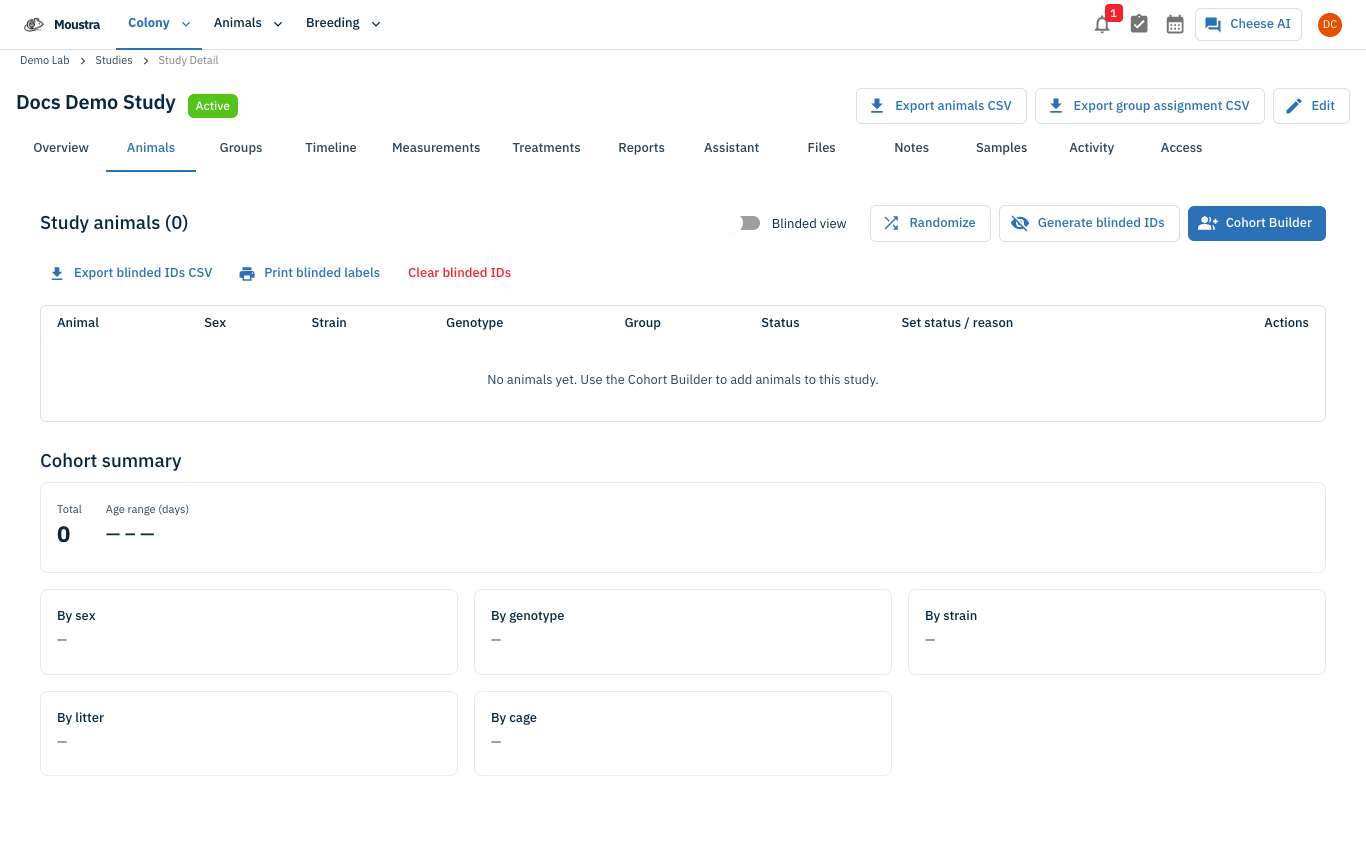
Open the Cohort Builder
In the action row at the top-right of the Animals tab, click the Cohort Builder button. A dialog titled Cohort Builder opens — this is the only way to add animals to a study (there is no manual "add by tag" form).
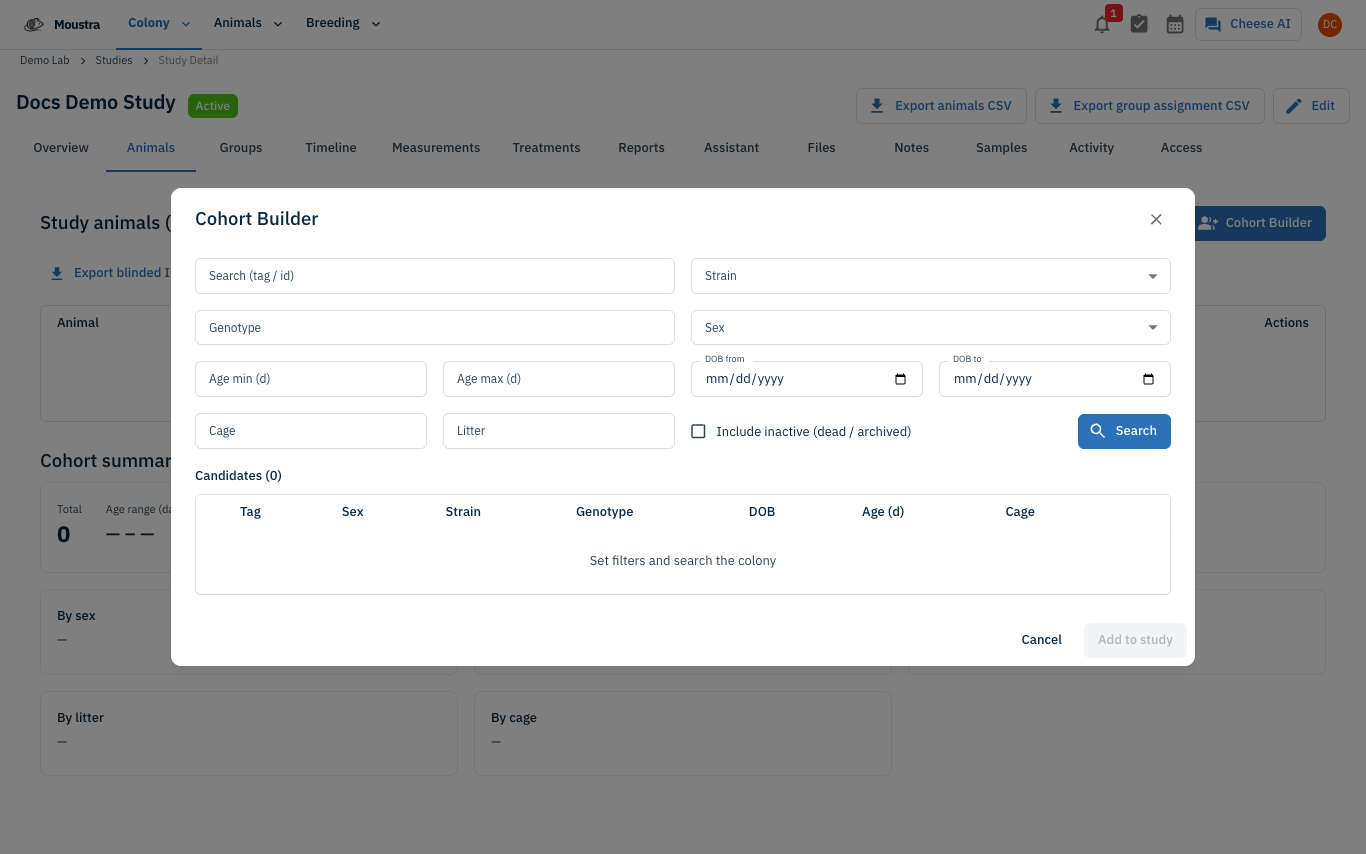
Filter the colony
Set one or more filters to narrow which colony animals you want, then click Search. Filters include Search (tag / id), Strain, Genotype, Sex, Age min/max (days), DOB from/to, Cage, Litter, and an Include inactive (dead / archived) checkbox (off by default). Before you search, the candidate area reads "Set filters and search the colony."
Review and select candidates
After searching, matching animals appear in the Candidates (N) table with Tag, Sex, Strain, Genotype, DOB, Age (d), and Cage. Tick the checkbox on each animal you want (or click the row); a N selected chip tracks your selection. Animals already in another active study are shown dimmed with a warning icon and cannot be selected.
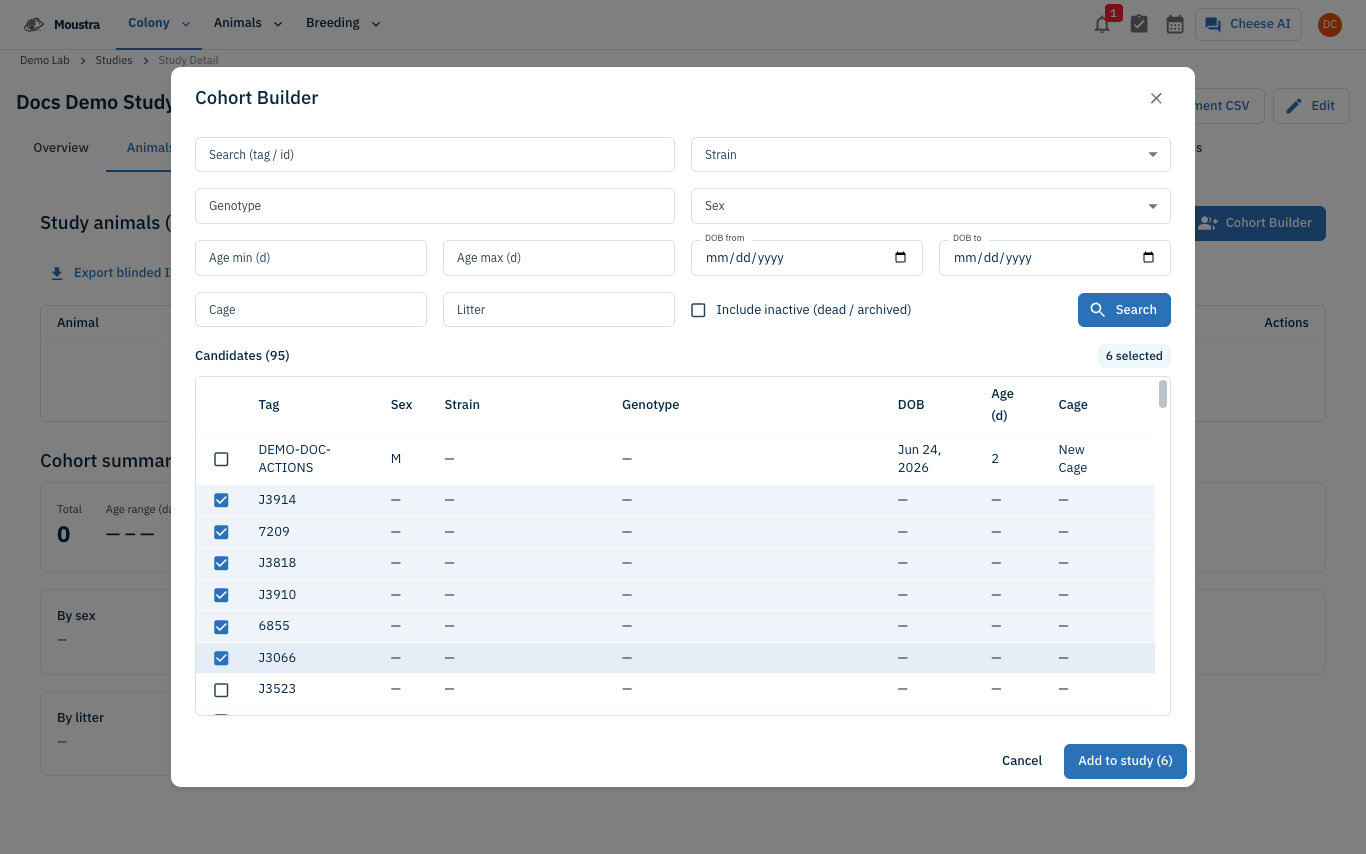
Add the selected animals to the study
Click Add to study (N) at the bottom of the dialog (disabled until at least one animal is checked). On success a confirmation appears, the dialog closes, and the new animals show in the Study animals table with status Included. The Cohort summary and the study's KPI counts update automatically.
Exclude an animal from the study (optional)
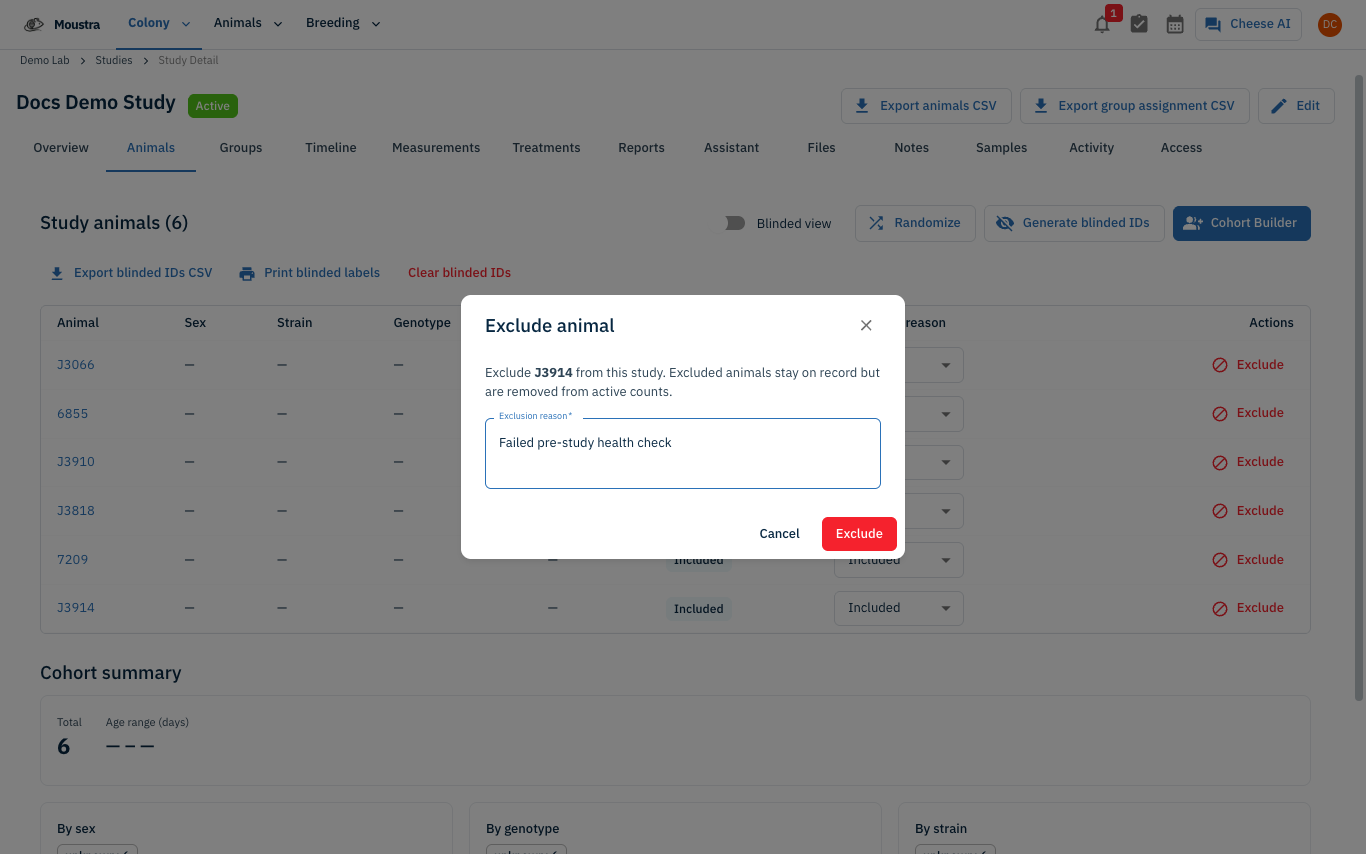
To drop an animal from the active cohort without deleting its record, click the red Exclude button in its Actions column. In the Exclude animal dialog, enter an Exclusion reason (required) and click Exclude. The animal moves to a separate Excluded section, its status chip turns to Excluded, and the reason is shown.
More in Advanced
Quick Edit Cell
Edit values directly in any data grid: double-click an editable cell and Moustra shows the right input (text, number, date, or dropdown). Press Enter to save or Escape to cancel.
How to Print Cage Cards
Print cage labels with animal tags, strain, and IACUC information for physical cage identification.
How to Connect Slack
Receive real-time notifications in Slack for litters, weans, and colony milestones without logging into Moustra.