Quick Edit Cell
Edit values directly in any Moustra data grid without opening a form. Double-click an editable cell and Moustra shows the right input for that column — text, number, date picker, or dropdown. Press Enter or click away to save, or Escape to cancel.
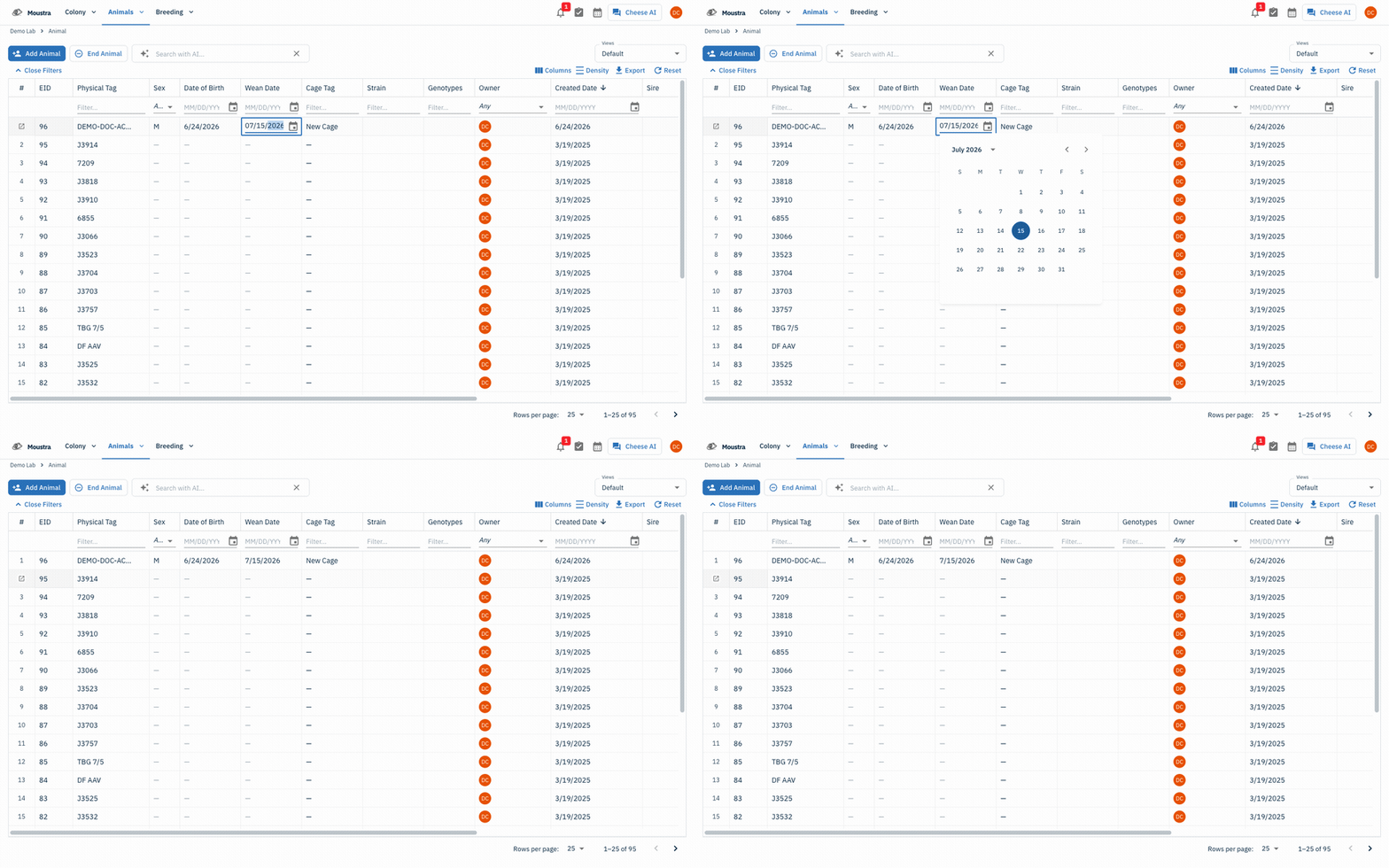
Double-click an editable cell
In any data grid (Animals, Plug Events, Strains, and more), double-click a cell to edit it in place — no mode to turn on first. Cells backed by an editable field open into an inline editor; if a cell does not open, that column is not editable.
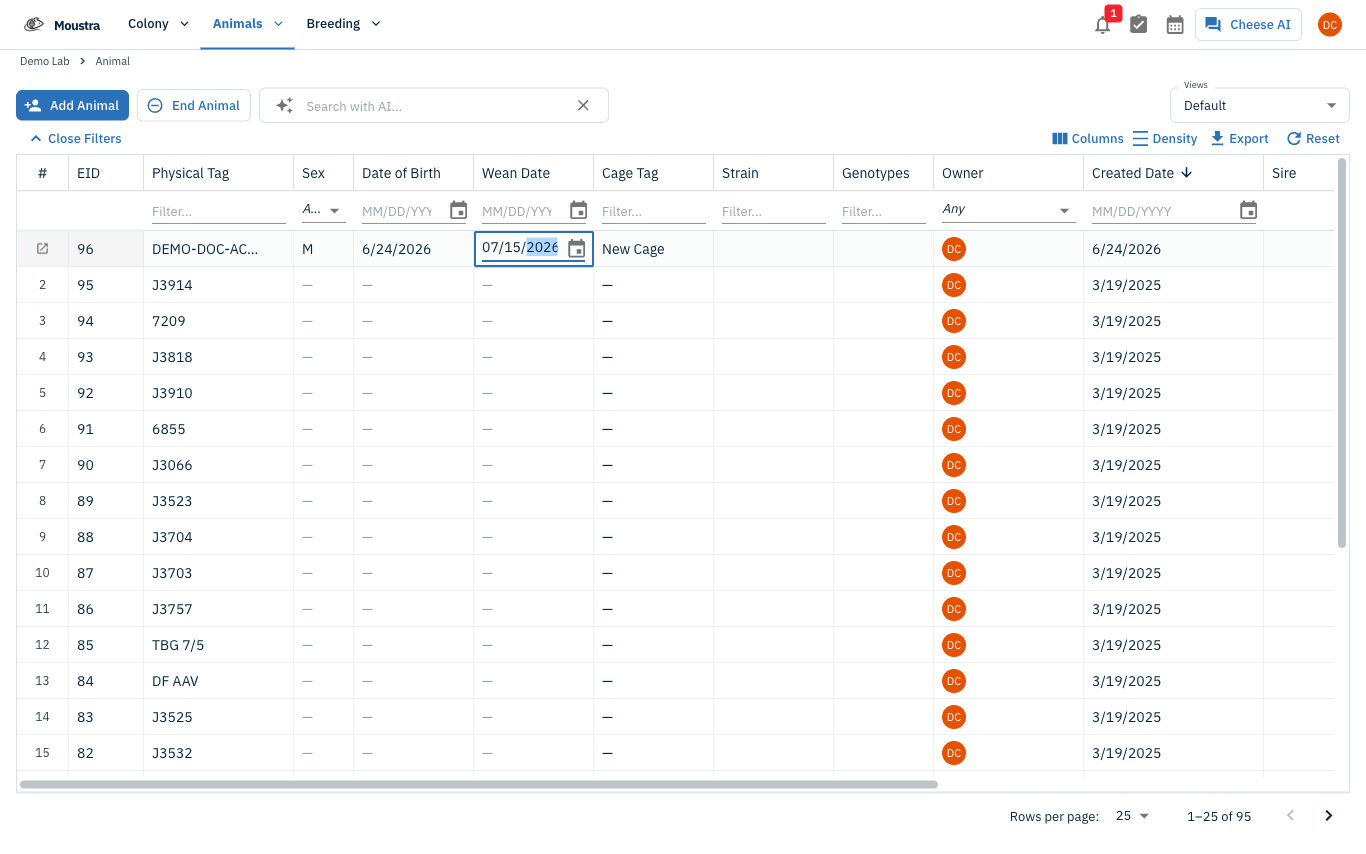
Edit the value
Moustra shows the input that matches the column — a text box, number field, date picker, or dropdown. Make your change.
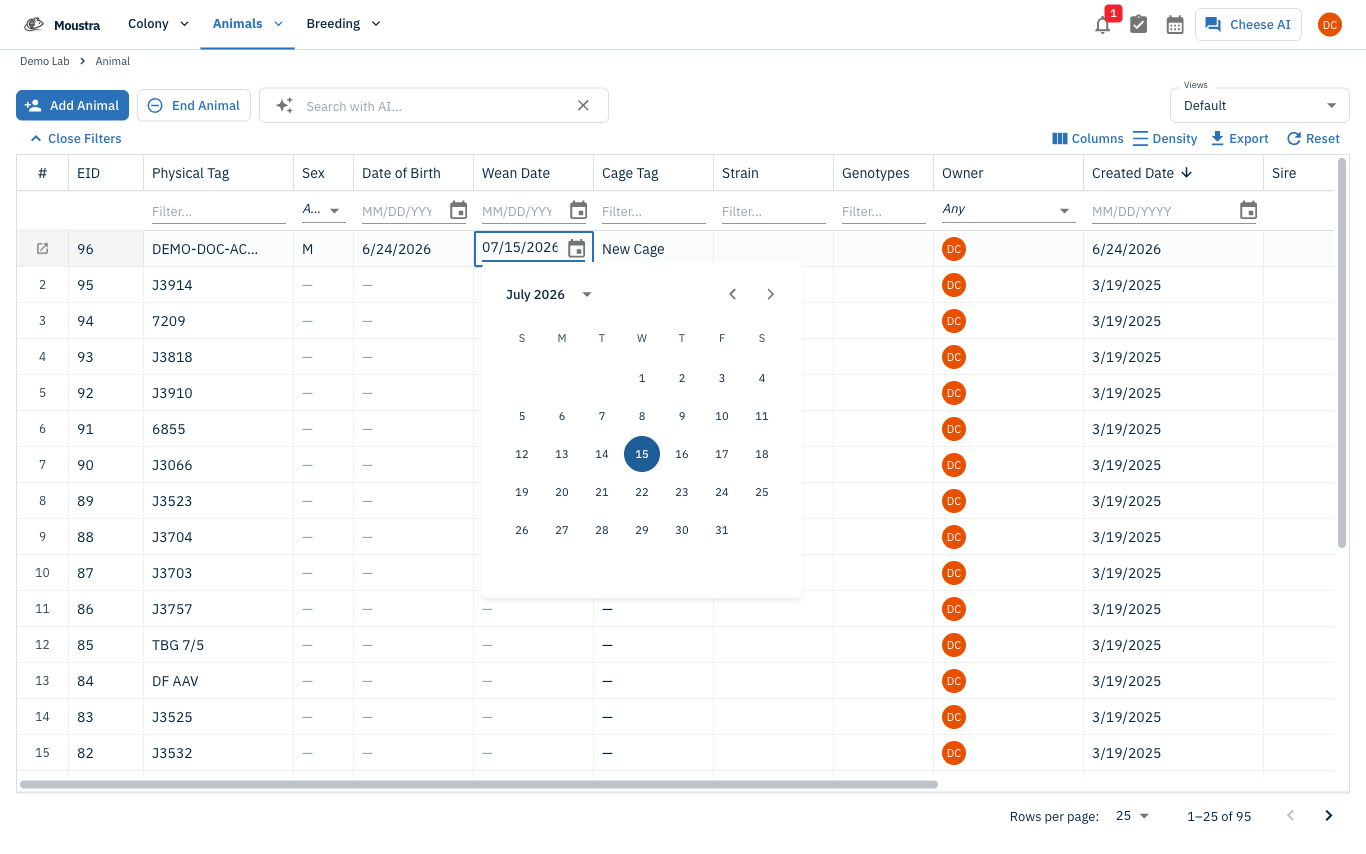
Save or cancel
Press Enter or click outside the cell to save; press Escape to discard. The grid updates immediately.
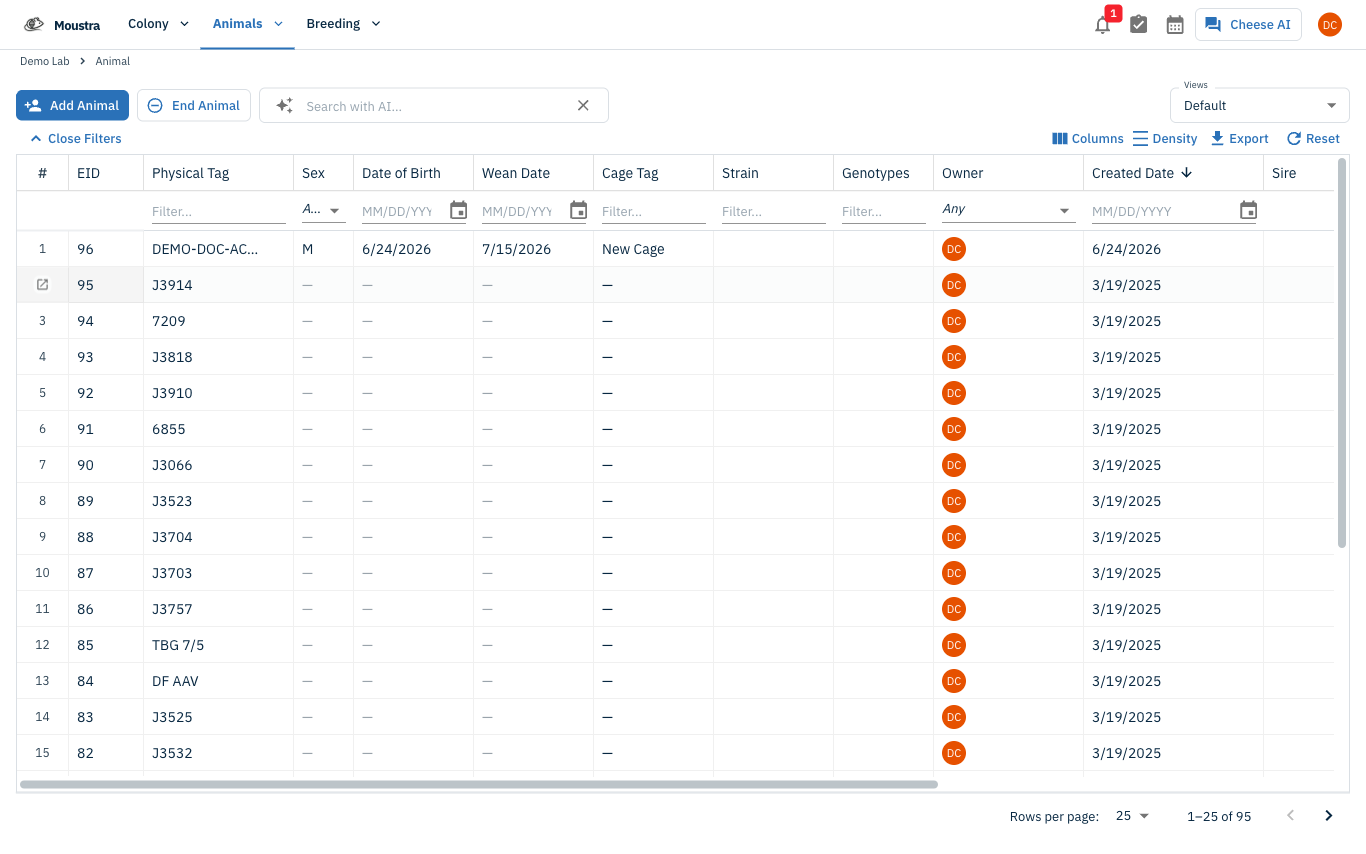
More in Advanced
How to Print Cage Cards
Print cage labels with animal tags, strain, and IACUC information for physical cage identification.
How to Connect Slack
Receive real-time notifications in Slack for litters, weans, and colony milestones without logging into Moustra.
How to Configure Daily Reports
Set up automated email summaries of colony activity delivered each morning to your team.