How to Invite Team Members
Add colleagues to your lab so they can view and manage the colony with you. Admins add users by name, email, and role; each invited person gets an email to join your lab.
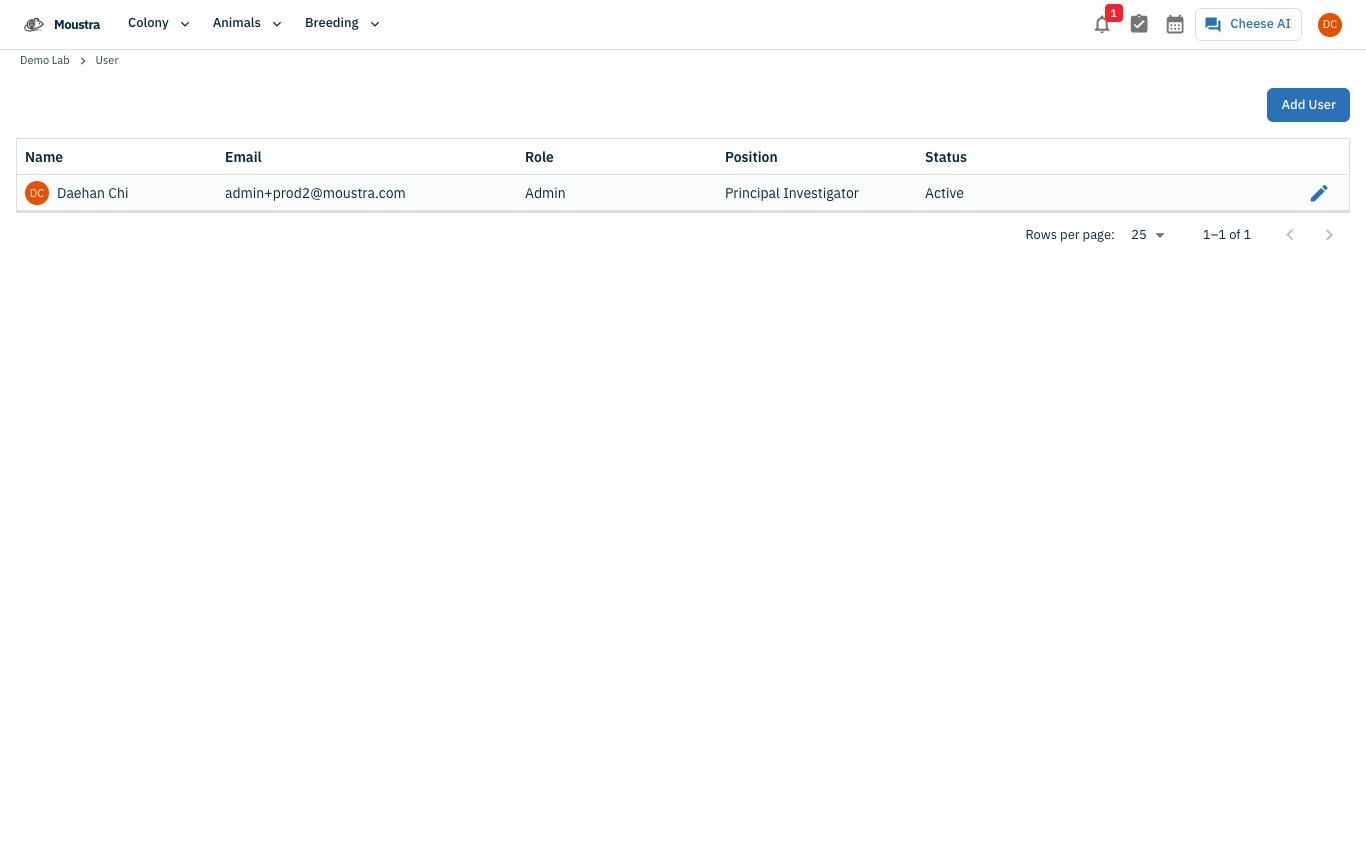
Open the Users page
From your account menu (top-right avatar) choose User to open your lab's user list — a table of everyone in the lab with their Name, Email, Role, Position, and Status. Click Add User (admins only).
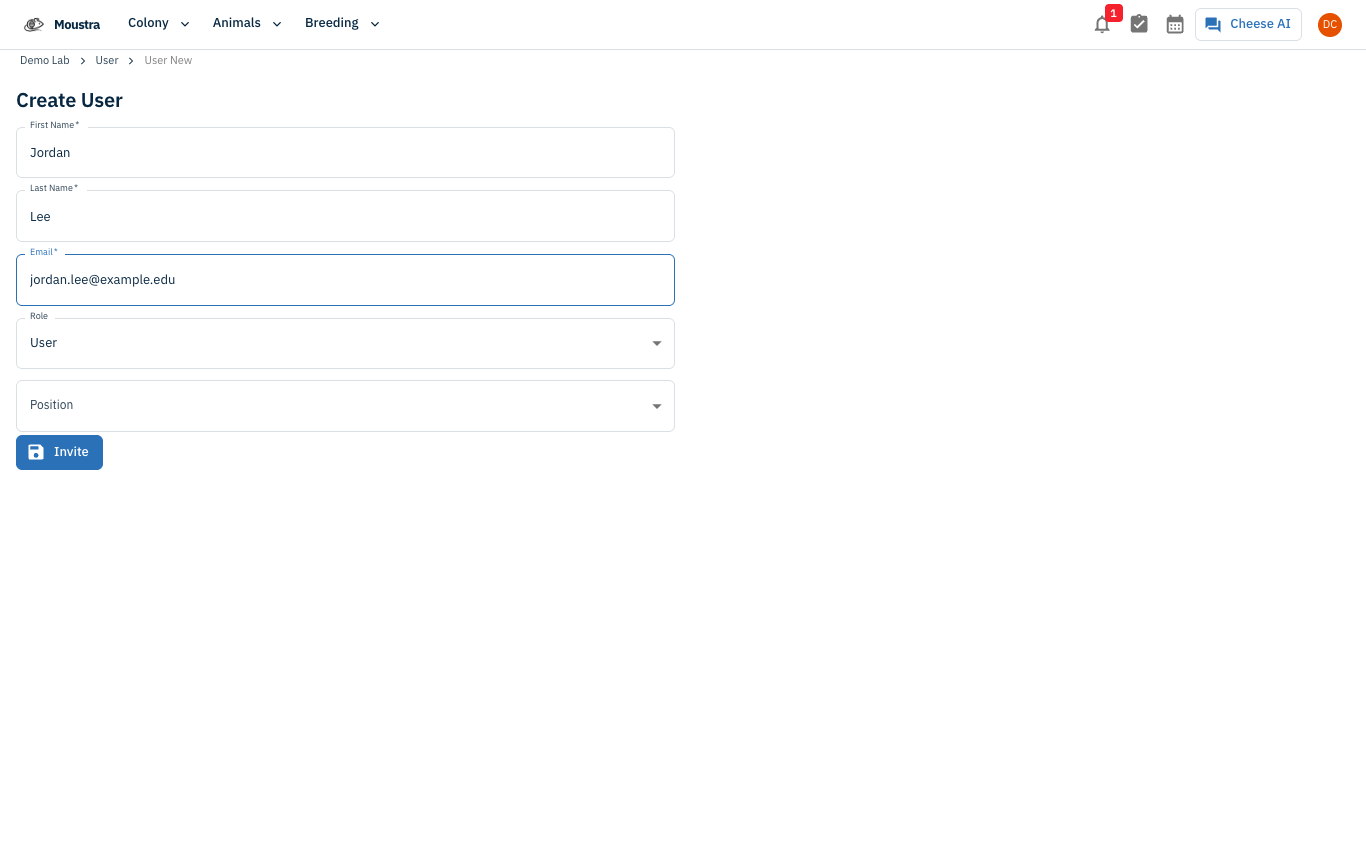
Enter the new member's details
On the Create User form, fill in First Name, Last Name, and Email (all required), then choose a Position if you track one.
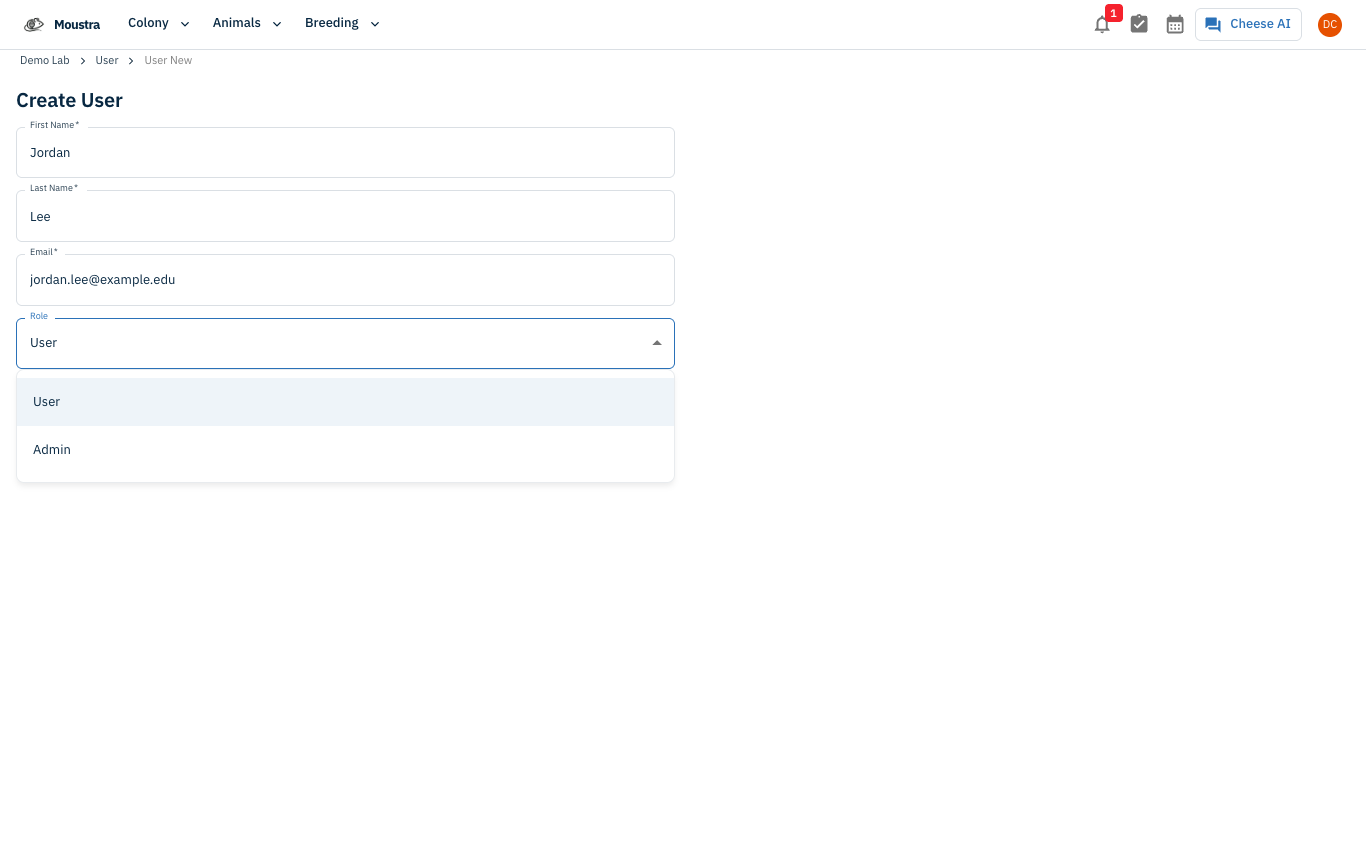
Choose a role and send the invite
Set the Role — User for standard access or Admin to also manage users and settings — then click Invite. Moustra emails the person an invitation to join your lab; they appear in the user list until they accept.
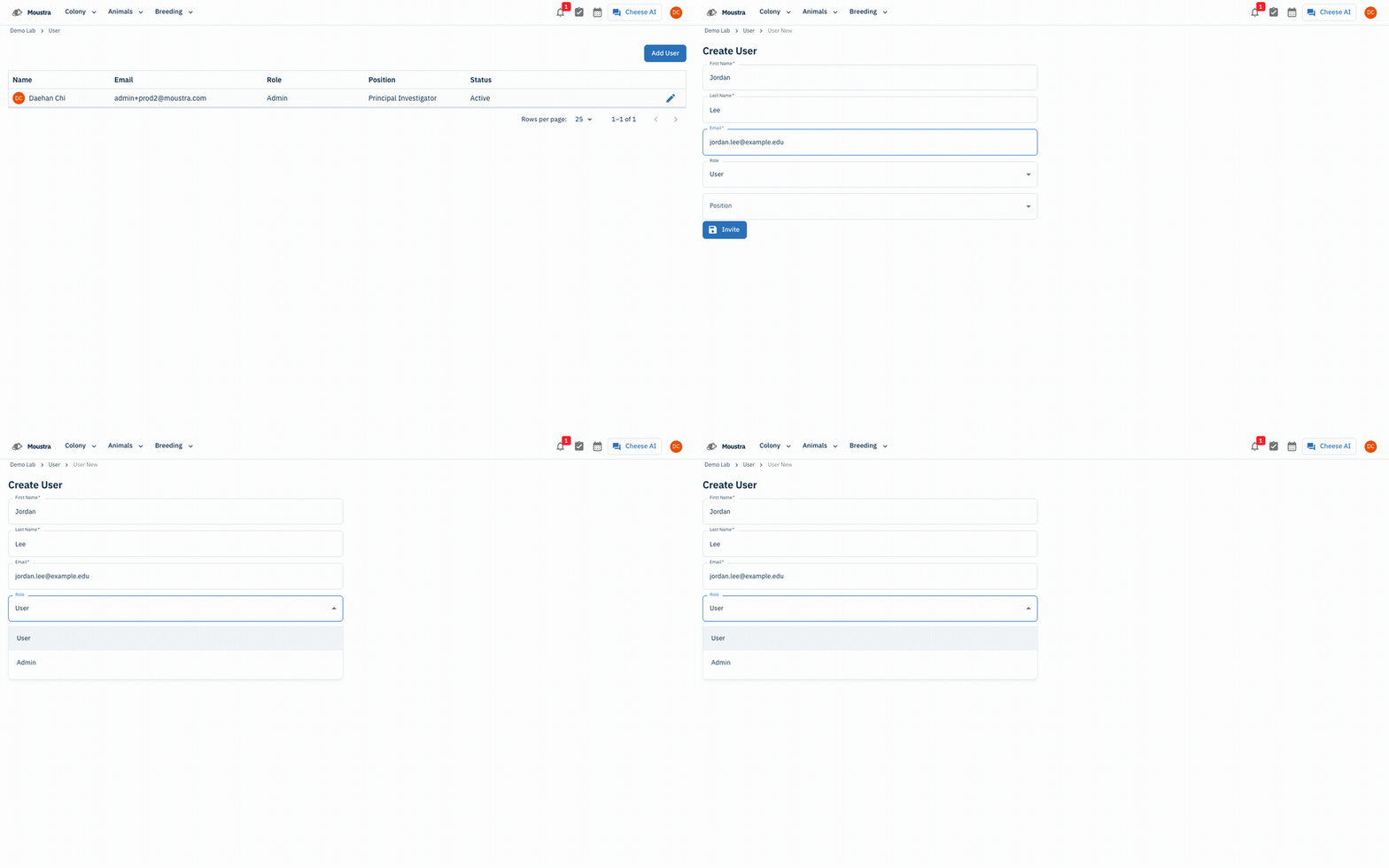
More in Advanced
Quick Edit Cell
Edit values directly in any data grid: double-click an editable cell and Moustra shows the right input (text, number, date, or dropdown). Press Enter to save or Escape to cancel.
How to Print Cage Cards
Print cage labels with animal tags, strain, and IACUC information for physical cage identification.
How to Connect Slack
Receive real-time notifications in Slack for litters, weans, and colony milestones without logging into Moustra.